
If you want a website blocker extension for chrome that actually works, the setup is simple: install one, keep your blocklist small, add a schedule, test it, and then close the easy bypass routes. That’s the real answer. Most people don’t fail because they picked the wrong website blocker extension for chrome — they fail because they never set it up for real life.
You probably know the pattern. You block YouTube, Reddit, or X, hit one annoying roadblock, and then five minutes later you’re opening Incognito, switching browsers, or turning the extension off “just for this one thing.” Research on attention and task switching, including APA research on multitasking and cognitive switching costs, points to the same basic problem: every interruption makes focused work harder than it looks.
So here’s the deal. This guide is about how to use website blockers on chrome after installation, not just how to click “Add to Chrome” and hope for the best. You’ll learn how to choose the right blocker type, build a realistic blocklist, set schedules that match your day, allow smart exceptions, and make your website blocker extension for chrome harder to bypass without turning your system into a punishment loop.
And yes, we’ll go beyond desktop. I’ll cover Chrome first, then phone options, stronger system-wide setups, and how to pair blockers with an attention warm-up ritual and a structured 60-minute deep work block so you actually know what to do once the distracting tabs are gone.
I’m a software engineer, not a neuroscientist. But I’ve built FreeBrain tools, tested distraction-control systems on myself, and spent a lot of time figuring out why some blockers help and others get bypassed by lunchtime. This is the practical version — what works, what breaks, and how to make it stick.
📑 Table of Contents
- Quick start: make blockers actually work
- Pick the right blocker for your goal
- Set up Chrome step by step
- Avoid easy workarounds and common mistakes
- Use blockers across phone and real work
- Frequently Asked Questions
- How do you use a website blocker on Chrome after installing it?
- What are website blockers used for?
- How do website blockers work?
- How can I use website blockers for free?
- How do I use website blockers on iPhone?
- How do I use website blockers on Android?
- How do I block all 18+ sites on Chrome?
- How do I remove a website blocker or take it off?
- Conclusion
Quick start: make blockers actually work
So here’s the deal: a website blocker extension for chrome only helps if your setup matches how you actually get distracted. Most people don’t fail because the tool is weak; they fail because the blocklist is too broad, too easy to disable, or not tied to a real work session.
Start simple. Install the blocker, block 5-10 high-risk sites, add a recurring schedule, test it on desktop and mobile, then close easy loopholes like incognito and alternate browsers. Pair that with an attention warm-up ritual and a planned 60-minute deep work block, and blockers stop feeling like a gimmick.
As a software engineer building FreeBrain tools, I’ve tested distraction-control setups across Chrome, phone settings, and study workflows. The pattern is consistent: friction helps, but only when the system is simple enough to keep using. And for compulsive internet use, anxiety, or sleep disruption, treat this as educational guidance and consult a qualified healthcare professional or licensed therapist.
The attention angle matters too. The APA’s overview of multitasking and task switching explains that switching between tasks carries a cost, which is why a 20-second social check can wreck momentum and make deep work harder.
The 5-step setup most people need
- Install one blocker in Chrome.
- Block your top 3-5 distraction sites first.
- Add a daily or weekday schedule.
- Test the block in your real study mode.
- Disable loopholes like incognito access if the extension allows it.
If you’re wondering how to use website blockers, this is the cleanest beginner setup. Block Instagram, X, Reddit, the YouTube homepage, and news sites, but allow Google Docs, your LMS, and research pages. After one week, expand only if needed.
Quick sidebar: most people overblock on day one. Then they hit one false block, get annoyed, and turn the whole thing off.
When a browser extension is enough
A Chrome-only blocker is usually enough if your main problem is mindless browsing on one laptop. If that’s where your digital distractions happen, a website blocker extension for chrome can create enough friction to protect focus mode.
But wait. If you keep switching to phone apps, another browser, or private windows, the extension won’t cover the full problem. That’s when you also need phone settings, app limits, or a cleaner setup to organize your digital study space.
Why blockers help but don’t solve everything
Blockers reduce temptation. They don’t fix sleep debt, stress, or vague tasks.
This is the part most people get wrong. If you’re tired, anxious, or unsure what to do next, you’ll often find a new distraction even with the blocklist on. Research on healthy sleep habits from the CDC also points to routines and environment, not just willpower, as part of better attention.
So yes, blockers help deep work. But the best setup cuts decision fatigue and still gives you a clear plan for what happens after the sites disappear. Which brings us to picking the right blocker for your goal.
Pick the right blocker for your goal
Once your rules are clear, the next job is choosing the right tool. A website blocker extension for chrome can work really well, but only if it matches the kind of distraction you’re actually fighting.
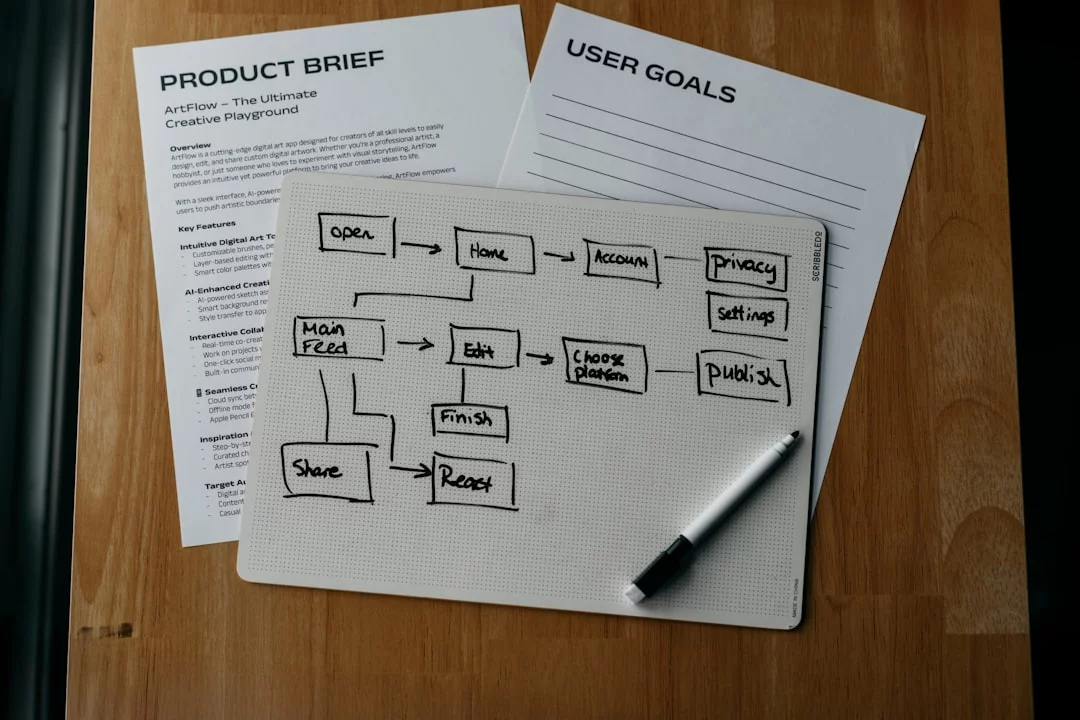
And here’s the kicker — blockers work best as part of a routine, not as a magic fix. Pair one with an attention warm-up ritual and a planned 60-minute deep work block, and you’ll get far more from the same setup.
Browser, device, or router?
What are website blockers, really? They’re tools that restrict access to distracting or unsafe sites, but they work at different levels.
- Browser extension: fastest to set up, best for Chrome tabs, weakest if you switch browsers or use apps.
- Device-level blocker: stronger because it can affect multiple browsers and apps on one phone or computer.
- Router-level blocking: applies across your home network, which is great for shared spaces but less flexible for individual exceptions.
So how do website blockers work in practice? They usually check each web request against a blocklist, schedule, or allowlist. Browser tools are great for YouTube, Reddit, or social feeds in Chrome. But wait — they often won’t stop the same site in another browser, incognito mode, or a phone app unless you configure them carefully.
| Type | Setup | What it blocks | Bypass risk | Best use case |
|---|---|---|---|---|
| Extension | Easy | Chrome sites | Higher | Studying, solo work |
| Device-level | Medium | Browsers + some apps | Medium | Work focus, adult-site filtering |
| Router-level | Harder | Whole network | Lower for kids | Family/shared-home controls |
Best fit for studying, work, and family use
For the best website blocker for studying, look for schedules, focus sessions, and allowlists. A student might block all of YouTube except one course channel, then switch to active recall or the best study methods by subject instead of doom-scrolling.
For work, recurring rules matter more than strict lockouts. Think: allow Slack, Google Docs, and email, but block X, Instagram, and news feeds from 9 to 12 and 2 to 5.
Now this is where it gets interesting. In the BlockSite vs StayFocusd decision, one may fit schedule-based blocking and cross-device habits better, while the other may suit simple Chrome-only time limits. If you mainly need a browser-only nudge, keep it simple. If you keep rebounding into distraction, research on stress and attention from the American Psychological Association’s stress resources helps explain why willpower alone often fails.
For adult-site blocking or family controls, extensions are usually too easy to bypass. A parent is often better off with device or router controls, though false positives can happen and some useful sites may get caught.
Free vs paid: what you actually need
Most people should start free. A free website blocker extension for chrome plus built-in phone settings is often enough to create a real focus mode.
Personally, I think this is the part most people get wrong. They buy a complex tool before proving they’ll use it daily. A simple free setup that survives for two weeks beats a paid system abandoned after three days.
Paid tools make more sense when you need stronger schedules, cross-device syncing, or accountability. And if distraction keeps spiking when you’re tired or overloaded, it may help to also learn how to improve focus under stress. Research on internet addiction and problematic use, summarized in a PubMed Central review on Internet addiction, suggests environment design matters because friction changes behavior.
📋 Quick Reference
Choose an extension for fast Chrome-only blocking. Choose device-level controls when apps and multiple browsers are the problem. Choose router-level blocking for family or shared-home rules. Start free unless you already know you’ll bypass basic tools.
Next, I’ll show you exactly how to set this up in Chrome without overcomplicating it.
Set up Chrome step by step
You’ve picked your tool. Now make your website blocker extension for chrome actually work in real study sessions, not just in theory. Pair it with a simple start cue like the attention warm-up ritual, and setup gets much easier to stick with.
How to set it up
- Step 1: Install from the Chrome Web Store, then review permissions and site access.
- Step 2: Start with a small blocklist of your highest-risk distraction sites.
- Step 3: Add an allowlist so useful pages still work.
- Step 4: Create recurring focus schedules and test them after setup.
1) Install and review permissions
Install the chrome extension from the Web Store, then open Details and check what sites it can access. If access is too limited, blockers can fail silently on some pages. And yes, that’s a common reason people think they “don’t work.”
Pin it to the toolbar so you can start a manual session fast. Then decide on Incognito access: keep it off if you want fewer loopholes, or turn it on only if your plan genuinely needs blocking there too. For how to use website blockers on chrome, this permission check is the first thing most guides miss.
2) Build a small blocklist first
Start with 5–10 sites for week one, not 50. Think triggers, not every possible distraction: youtube.com, reddit.com, x.com, instagram.com, and one or two news domains you compulsively check.
- Block full domains first
- Add patterns if the tool supports them
- Skip low-risk sites until they become a problem
Why stay small? Overblocking often creates rebound browsing and uninstalling. If stress is driving the checking, you may also need to improve focus under stress, not just tighten site restrictions.
3) Add an allowlist and useful exceptions
A good allowlist keeps work flowing. Allow docs.google.com, your university portal, Notion, Canvas, and maybe one YouTube course playlist while blocking the homepage, Shorts, and recommendations if the tool supports page-level rules.
Smart exception or loophole? Ask one question: does this page move your task forward right now? Research on attention and task switching summarized by the American Psychological Association on productivity and interruptions helps explain why broad “just a quick check” access usually backfires.
4) Schedule recurring focus sessions
Set weekday blocks for 9:00–11:00 and 14:00–16:00, then match them to your weekly study schedule. On low-energy days, use 25/5 rounds. For harder work, try a 50-minute session followed by 10 minutes off, or one structured 60-minute deep work block.
Then test everything. Open a blocked site, try it in a new tab, restart Chrome, and check any synced profile you use. Also remove distracting bookmarks and organize your digital study space; environmental cues matter, which fits what stimulus control principles suggest about reducing triggers. Next, we’ll close the easy escape routes and fix the mistakes that make blockers too easy to bypass.
Avoid easy workarounds and common mistakes
Once your setup is live, the real test starts: can you bypass it in 10 seconds? A website blocker extension for chrome helps, but it works best inside an attention warm-up ritual and a defined 60-minute deep work block, not as a solo fix.
Close the loopholes that matter most
The biggest bypass prevention gaps are predictable: incognito mode, uninstalling the add-on, switching browsers, using mobile apps, opening another Chrome profile, and sync settings that leave one laptop unprotected. And yes, a Chrome blocker can’t fully control what happens in Safari, native apps, or on your phone.
- Turn on incognito coverage if the tool supports it.
- Use a password held by someone else when possible.
- Remove alternate browsers and log out of distracting sites.
Research on habit change from the National Institutes of Health supports changing cues and adding friction. That’s why blockers work better as environment design than pure willpower.
Common setup mistakes to avoid
This is the part most people get wrong. They block 25 sites on day one, skip an allowlist for school tools, add no schedule, then disable the whole system by Wednesday. Better: start small, pair it with the 5-minute rule for procrastination, and test every device you actually use.
From experience: the setups people keep using
After building productivity tools, I keep seeing the same pattern: fewer rules win. One browser blocker, one phone focus mode, and one clear work block usually beats an extreme setup that collapses after three days.
If your blocker isn’t working
For a website blocker not working on chrome fix, check app permissions, extension conflicts, cache, profile mismatch, and sync. If a site is blocked in Chrome but still opens in its app or on mobile, that’s normal. Work-managed devices may also restrict settings, and stronger filters can create false positives. Next, let’s make that protection work across your phone and real work sessions.
Use blockers across phone and real work
Here’s the mistake that breaks most setups: you block sites on your laptop, then grab your phone 8 minutes later. A website blocker extension for chrome helps, but your system gets real only when phone friction matches your desktop rules.
iPhone and Android basics
For iPhone, use Screen Time: App Limits for social or video apps, Downtime for hard off-hours, and Content & Privacy Restrictions to limit web content in Safari and related access. Apple’s guide at Apple Support walks through it, and if accountability helps, let someone else hold the Screen Time passcode. That’s often the difference between “set up” and “actually used.”
For Android, open Digital Wellbeing for app timers and Focus Mode, which pauses selected apps during work blocks. Google’s setup docs at Google Help cover the basics of how to use website blockers on android, and this pairs well with a website blocker extension for chrome on desktop. If evenings are the problem, also stop checking your phone at night with a scheduled shutdown routine.
Real-World Application: 3 setups that hold up
- Student: Block social feeds and YouTube recommendations during two 60-90 minute study blocks. Allow your LMS, Google Docs, and one course channel only.
- Remote worker: Block news, social, and shopping from 9-12 and 2-4. Keep Slack, email, Docs, and project tools available for a clean 2-hour work sprint.
- Phone-heavy user: Combine Chrome blocking with Screen Time or Digital Wellbeing, charge your phone across the room, and shut social apps down after 10 PM.
Quick Reference and next steps
📋 Quick Reference
Chrome only: good if your distractions mostly happen at your desk.
Chrome + phone: best for most people who switch devices mid-task.
Device/router level: use this only if you keep bypassing schedules, apps, or browser rules.
Start small today: make one blocklist, one schedule, and one exception list. Then test it for 3 days. If you still keep dodging it, add one stronger layer. Blockers are friction tools, not moral tests. Which brings us to the practical questions people ask right before they set this up.
Frequently Asked Questions
How do you use a website blocker on Chrome after installing it?
For how to use website blockers on chrome, keep it simple: pin the extension, add a short blocklist with your top 3-10 distracting sites, create an allowlist for study or work tools, and set a recurring schedule that matches when you actually need focus. Then test it in normal browsing, after restarting Chrome, and on any synced Chrome profile you use, because a website blocker extension for Chrome only helps if it works in the places you normally get distracted. If you want a stronger setup, pair the blocker with a specific task and a timed work session instead of blocking everything all day.

What are website blockers used for?
If you’re wondering what are website blockers used for, the short answer is this: they reduce access to distracting, unsafe, or unwanted sites during work, study, family use, or content filtering. They’re most effective when you use them for a defined session, like a 45-minute writing block or a 2-hour exam prep window, not as a vague “be more disciplined” plan. And yes, a website blocker extension for Chrome can help a lot, but it’s usually best as part of a clear routine rather than a stand-alone fix.
How do website blockers work?
For how do website blockers work, most browser-based tools stop selected pages from loading by intercepting requests or applying page access rules inside that browser. That means a Chrome extension can block websites in Chrome, but it may not stop the same content in another browser or in native apps. Device-level and router-level tools go further, since they can block more broadly across apps or across all devices on a network.
How can I use website blockers for free?
The easiest answer to how to use website blockers for free is to start with a free Chrome blocker and combine it with built-in phone tools like Screen Time on iPhone or Digital Wellbeing on Android. For a lot of people, that covers the biggest distractions without paying for a separate app, especially if your problem is a handful of repeat sites. Want better results? Use the blocker during a planned study block and pair it with a simple method like the one in our Pomodoro guide.
How do I use website blockers on iPhone?
For how to use website blockers on iphone, start with Screen Time: set app limits, turn on downtime, and use content restrictions to limit website access. If accountability helps, have a parent, partner, or friend set the Screen Time passcode so you can’t bypass it in a weak moment. Apple explains the built-in controls here: Screen Time on iPhone.
How do I use website blockers on Android?
For how to use website blockers on android, begin with Digital Wellbeing for Focus Mode and app timers, then add a browser blocker if web browsing is the main problem. Check app permissions before assuming it’s working, and remember that browser-only tools usually won’t block native apps like social media apps you installed separately. So if you’re still getting distracted, the issue may not be the browser at all.
How do I block all 18+ sites on Chrome?
If you’re asking how do i block all 18+ sites on chrome, a manual blocklist usually isn’t enough. You’ll want a content-filtering tool or a stronger parental-control setup, because those systems use category-based filtering instead of relying on you to list every site one by one. But wait—filters aren’t perfect: they can miss some content, overblock legitimate pages, and often work unevenly across browsers, apps, and devices.
How do I remove a website blocker or take it off?
For how to remove a website blocker, most Chrome-based tools can be disabled or removed from the Extensions menu unless they’re protected by an admin setting, password, or device control policy. Open Chrome extensions, find the blocker, and check whether you can toggle it off or remove it; if you can’t, the browser may be managed by a school, workplace, or family-control system. In that case, you’ll usually need permission from the administrator rather than a workaround.
Conclusion
If you want a website blocker extension for chrome that actually holds up, four things matter most: pick a blocker that matches your goal, lock your settings before distractions hit, remove the easy escape routes, and test your setup during real work hours. That means using schedules instead of vague intentions, adding password or delay friction where possible, blocking the specific sites and pages that pull you off task, and syncing your system across desktop and phone so you’re not just moving the distraction somewhere else. And yes, this is the part most people get wrong — they install the tool, but they don’t harden the setup.
But wait. Don’t treat this like a self-control contest. Treat it like environment design. You’re not weak because you get pulled into YouTube, Reddit, or news tabs. You’re human. Personally, I think the best blocking system is the one that feels a little boring, because boring systems are the ones you’ll keep using when your motivation drops. Start small, tighten one loophole at a time, and give yourself a week to adjust. Worth it? Absolutely.
Which brings us to your next step: go build a distraction-proof workflow you can actually live with. If you want more practical help, read How to Stop Procrastinating and Deep Work Method on FreeBrain.net. And if you’re still tweaking your website blocker extension for chrome, keep refining until the default choice is focus, not frictionless distraction. Set it up today, test it tomorrow, and protect your best hours on purpose.