

You don’t need another planner you’ll ignore by Thursday. You need a simple system for getting things done for students when your brain is juggling classes, deadlines, group projects, club messages, work shifts, and 27 open tabs. That’s where GTD helps: in plain English, it’s a way to get everything out of your head, decide what each item means, and keep the next step visible.
Sound familiar? An assignment is due Friday, your professor just posted a new reading, your lab partner changed the meeting time, and you still haven’t replied to that internship email. Research on stress from the American Psychological Association has long shown that chronic overload can hurt focus, memory, and follow-through — and yeah, most students feel that in real time.
This guide breaks down getting things done for students into 7 simple steps built for actual school life, not office cubicles. You’ll learn how to set up capture, projects, next actions, calendars, and weekly reviews around lectures, assignments, exams, clubs, and part-time jobs. And here’s the kicker — this isn’t about becoming a productivity robot. It’s about reducing mental clutter so you can actually use study methods that work and study complex topics without your task list melting down.
You’ll also get a lightweight version for overwhelmed weeks, plus practical ideas for paper planners, Notion, Todoist, and simple checklists. Personally, I think this is the part most GTD advice misses: students don’t need a rigid productivity religion. You need a student-first setup that’s flexible, realistic, and fast enough to keep using when the semester gets messy.
I’m a software engineer and self-taught learner who built FreeBrain’s learning tools around real study workflows, and that shapes this guide. So here’s the deal: if you want a practical getting things done for students setup you can start this week, you’re in the right place.
📑 Getting Things Done For Students Guide
- Why GTD works for student life
- Build your simple setup
- The 7-step GTD setup
- Mistakes that make GTD fail
- Examples, tools, and quick reference
- Frequently Asked Questions
- How do you set up GTD for students?
- What is a GTD setup for students?
- Is GTD good for college students?
- What are the 5 GTD steps for students?
- How do students use GTD for assignments and exams?
- What is the best GTD app for students?
- How often should students do a GTD weekly review?
- Can students use GTD with Notion or Todoist?
- Conclusion
Why GTD works for student life
If the intro felt a little too familiar, that’s because student life really is messy. Most students are juggling 4-6 courses, multiple deadlines each week, work shifts, and club commitments, which creates constant mental residue and missed follow-ups. For more on productivity and focus, see our productivity and focus guide.
That’s exactly why getting things done for students makes sense: it gives you a way to get tasks out of your head, decide what each one means, and keep trusted lists so you can focus on doing instead of remembering. And no, it doesn’t replace study methods that work; it supports them.
What GTD means in plain English
In plain English, GTD is a system for catching every commitment, turning vague stuff into clear next actions, and reviewing it often enough that your brain stops acting like a sticky-note app. What is a GTD setup for students, really? Usually just one trusted place for assignments, errands, admin, and study tasks.
Personally, I think this is the part most people overcomplicate. GTD isn’t a productivity religion, and it doesn’t require fancy software. Paper works. So does a simple app. The point is support, especially when you study complex topics and need less cognitive clutter, not more.
Why students get more value from externalizing tasks
Open loops are expensive. “Email TA about rubric,” “print lab worksheet,” “book tutoring slot,” and “review quiz mistakes” all compete for limited working memory, and research on cognitive load and attention suggests that overload and stress make focus worse, not better, as summarized by the American Psychological Association’s overview of stress and NCBI’s overview of working memory.
GTD for college students works because it translates David Allen’s five stages into school language:
- Capture lecture to-dos, emails, and deadlines
- Clarify vague assignments into visible next steps
- Organize by class, context, or project
- Review weekly so nothing goes stale
- Engage based on your time, energy, and location
And here’s the kicker — one trusted student GTD system means you stop re-remembering the same task five times a day. That matters because task switching has a real cost, especially during exam weeks.
What this guide will help you build
I’m writing this from hands-on experience building FreeBrain productivity tools and testing learning workflows as a self-directed learner. I’m not a neuroscientist, but established GTD concepts line up well with what evidence suggests about cognitive load, attention, and stress. You’ll build a setup that works for classes, exams, clubs, and part-time work, and you’ll be able to keep it on paper or digital without turning it into a second job.
We’ll also keep it sustainable, because weekly review only works if you build habits that stick. A lighter version is coming next, along with practical templates and examples.
Quick note: organization can reduce overwhelm, but it is not treatment for anxiety, ADHD, burnout, or sleep problems. If those issues are affecting your daily life, consult a qualified professional. Next, let’s build your simple setup.
Build your simple setup
If GTD fits student life, the next move is keeping it small enough to trust. Getting things done for students works best when your system supports real studying, like study methods that work, instead of turning into another homework assignment.

And yes, this matters more than aesthetics. A clean setup reduces mental load, which is especially helpful when you’re trying to study complex topics without holding ten loose ends in your head.
Paper or digital: pick the one you’ll trust
Choose based on behavior, not vibes. If you jot things down faster by hand and actually look at a notebook, paper may be your best paper vs digital GTD for students option. But if tasks hit you through email, LMS alerts, and group chats, digital usually wins.
Four things decide it: capture speed, device habits, need for recurring reminders, and tolerance for setup complexity. One app stack beats five disconnected tools — that’s the whole point of digital minimalism for students. Hybrid works too: paper for quick capture, digital calendar for deadlines.
App logic is simple: Notion fits dashboard-heavy, reference-first students; Todoist is great for fast capture and recurring tasks; Apple Reminders or Google Tasks are best if you want less friction; Obsidian suits note-linked workflows. And if you overbuild with tags, databases, and dashboards? Maintenance debt piles up fast.
The 6 lists every student actually needs
A workable student GTD system is boring on purpose. You need one inbox, one calendar, one projects list, one next-actions list, one waiting-for list, one someday/maybe list, and one reference area.
- Inbox: raw captures like “email TA,” “buy lab goggles,” “club budget draft.”
- Projects: anything with more than one step. “Finish sociology essay” is a project.
- Next actions: visible, physical steps. “Find 3 sources” or “outline intro paragraph.”
- Waiting for: professor reply, lab partner data, manager schedule.
- Someday/maybe: join debate team, learn Python, apply for summer research.
- Reference: syllabi, rubrics, reading lists, meeting notes.
What goes on your calendar
Your calendar is for the hard landscape only. That means classes, exams, work shifts, appointments, due dates, and study blocks only when they’re truly time-bound. For example, an exam on Oct 18 goes on the calendar; “review lecture 4 flashcards” stays on your task list unless you deliberately schedule it.
This distinction matters. Research on prospective memory discussed in Wikipedia’s overview of prospective memory helps explain why time-specific commitments need a trusted external cue, while general tasks don’t. And habit research from the American Psychological Association on habits supports making your weekly review a recurring calendar event, which also helps you build habits that stick.
That’s the core of getting things done for students: fewer buckets, clearer decisions, less fake urgency. Next, I’ll walk through the 7-step GTD setup so you can build it without overthinking it.
The 7-step GTD setup
Now that your setup is simple, turn it into a working system. For getting things done for students, the goal is basic: get everything out of your head, define the next move, and stop relying on memory alone.
And yes, GTD helps you organize studying, but it doesn’t replace good learning. Your system should support study methods that work like retrieval practice, spaced repetition, and the active recall study method.
How to set up GTD for school
- Step 1: Brain dump into one inbox.
- Step 2: Clarify each item into a visible next action.
- Step 3: Organize into projects, next actions, waiting for, someday, and reference.
- Step 4: Build a class dashboard from each syllabus.
- Step 5: Put only real deadlines and fixed commitments on your calendar.
- Step 6: Run a weekly review.
- Step 7: Choose tasks by context, time, energy, and urgency.
Step 1-2: Capture and clarify
Start with one messy brain dump: assignments, reading, club tasks, work shifts to confirm, admin errands, random reminders. This reduces overload, which matters when you study complex topics and your brain is already juggling too much.
Then clarify. Ask: what is it, is it actionable, and what’s the next visible action? “Biology midterm” becomes “open syllabus and list tested chapters.” “History essay” becomes “choose thesis angle and pull prompt.” Don’t write vague items like “study chemistry” or “fix school stuff.”
Step 3-5: Organize, map classes, and calendar
Sort everything into projects, next actions, waiting for, someday, and reference. Example: “Psych paper” is a project; “email TA about topic approval” is a next action; “advisor reply” goes on waiting for. Don’t turn every tiny task into a project.
Next, build a class dashboard with major deadlines, exam dates, office hours, and recurring study blocks. Research on cognitive load, summarized by Wikipedia’s overview of cognitive load, helps explain why externalizing this stuff frees attention. But wait: your calendar gets only hard deadlines and time-specific commitments. Don’t put “read chapter 6” at 7:00 PM unless it truly must happen then.
Step 6-7: Review weekly and choose what to do
Run a 15-30 minute weekly review. Clear your inbox, update projects, scan the next 14 days, and pick priority actions for classes, clubs, and shifts. If you want this to last, treat the review as a recurring ritual, the same way you build habits that stick.
Then engage. Choose by context, available time, energy, and urgency—not mood alone. Between classes, “email professor” beats “start 6-hour paper draft.” Evidence on prospective memory from the NCBI Bookshelf overview of memory systems is a good reminder that your brain is bad at reliably holding future intentions. That’s the heart of getting things done for students. Next, let’s cover the mistakes that make GTD fail.
Mistakes that make GTD fail
You’ve got the 7-step setup. Now the part most guides skip: why getting things done for students breaks after week one. GTD should support study methods that work, not replace them.
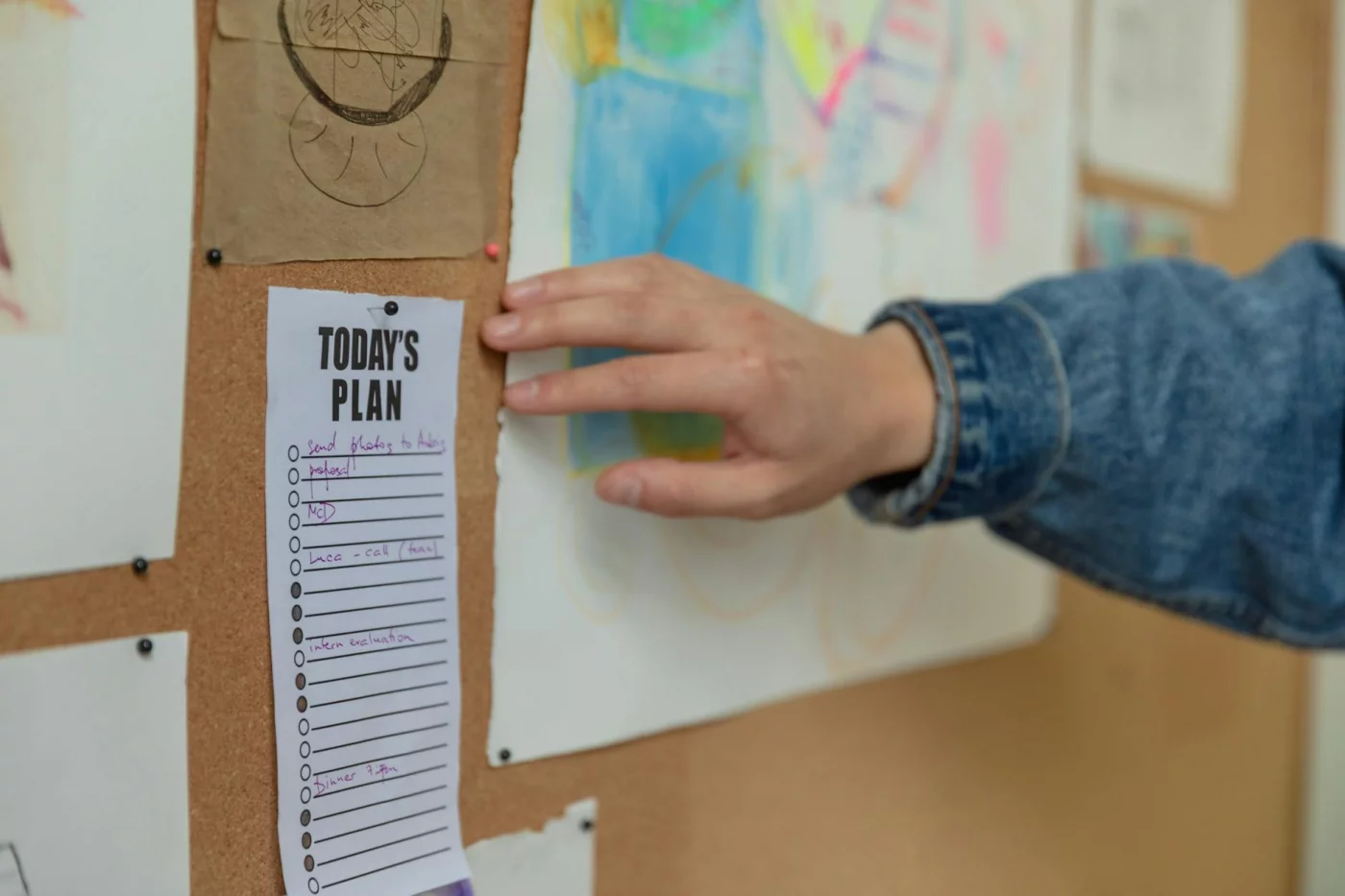
6 common setup mistakes
The biggest leaks are boring, not technical. Students use five inboxes, write “study chemistry,” dump notes beside actions, overload the calendar, skip the weekly review, then build a fancy dashboard they won’t maintain.
- One capture inbox beats scattered apps and sticky notes.
- Write next actions, not vague projects: “Do 10 acid-base problems” works better.
- Keep tags light. Too many priorities and views add friction.
And context matters more than most students think. If you’re in a dorm, library, lab, or 20-minute commute gap, choose tasks that fit that environment; can your brain multitask? Not well, and switching between essay writing, messages, and quiz prep burns focus. A simple task system for students also helps when you study complex topics because it gets mental clutter out of your head.
The lightweight version for rough weeks
If inboxes pile up for 2+ weeks or reviews keep getting skipped, simplify fast. For a simple gtd setup for overwhelmed students, use just three lists: Inbox, This Week, and Calendar.
Example: three exams plus two work shifts. Put “chem review sheet,” “history flashcards,” and “email TA” in This Week; only fixed deadlines and shifts go on Calendar. Then do a 10-minute review every Sunday to build habits that stick.
When productivity advice isn’t enough
Sometimes the problem isn’t your system. Severe stress, sleep loss, anxiety, ADHD-related executive dysfunction, or burnout can look like “bad productivity,” but evidence from the CDC’s sleep guidance shows sleep directly affects attention, learning, and mood.
Next, I’ll show concrete examples, templates, and tools that make getting things done for students actually usable day to day.
Examples, tools, and quick reference
If GTD keeps failing, the fix usually isn’t motivation. It’s making the system smaller, clearer, and easier to trust for real student life.
Real-world example: one week in college
Here’s a practical gtd setup for students example: 5 classes, 14 work hours, and a club event on Saturday. Projects might include “History essay due Thursday,” “Chem lab report due Friday,” “Club event setup,” and “Prep for calc quiz.” GTD organizes those commitments; your actual learning still depends on active recall study method.
- Next actions: find 3 history sources, draft essay intro, finish lab data table, email club treasurer, review calc problem set 4
- Waiting for: professor reply about essay topic, lab partner’s measurements, club room confirmation
- Calendar: Tue work 5–9 PM, Wed office hours 1 PM, Thu essay due 11:59 PM, Fri lab 10 AM, Sat club event 2 PM
Which app fits which student
Best gtd app for students? Depends on setup logic. Notion works well if you want dashboards, a class hub, and reference notes in one place. Todoist is better for fast capture, recurring reviews, and clean next-action lists.
Google Tasks or Apple Reminders fit overwhelmed students who need low-friction simplicity. Obsidian makes sense if your notion gtd setup for students feels too heavy and you want tasks linked to lecture notes, readings, and research.
Quick reference and next steps
A solid gtd setup for students template should include one inbox, projects list, next-actions list, waiting-for list, weekly review checklist, class dashboard, and semester map. And yes, a gtd setup for students pdf or free template is useful only if you actually review it weekly.
📋 Quick Reference
- Capture everything in one inbox
- Track projects by outcome, not subject only
- Write next actions as visible physical steps
- Use calendar only for fixed-time commitments
- Keep a waiting-for list for replies and dependencies
- Review weekly and trim stale tasks
- Adjust your template to class load and work hours
Start with one inbox, a few lists, and one weekly review. That’s enough to make GTD work in college. Next, let’s wrap up the biggest questions and the simplest way to begin.
Frequently Asked Questions
How do you set up GTD for students?
If you’re wondering how to set up gtd for students, start small: use one inbox, one calendar, and a few core lists. Capture everything in one place, clarify the next action for each item, organize tasks by class and context, then do a weekly review so your system stays current instead of turning into another messy to-do list.

What is a GTD setup for students?
What is a gtd setup for students? It’s a student-friendly version of Getting Things Done built around classes, assignments, exams, admin tasks, and campus responsibilities. The point is simple: reduce mental clutter by moving commitments out of your head and into trusted lists, then use a weekly review to keep your academic life under control.
Is GTD good for college students?
Yes — if you’re asking is gtd good for college students, the short answer is absolutely, especially when you’re balancing multiple courses, deadlines, clubs, and part-time work. But wait, the system works best when you keep it simple and pair it with strong study habits like spaced repetition and active recall; FreeBrain’s study tools and planners can help with that side of the equation.
What are the 5 GTD steps for students?
If you want to know what are the 5 gtd steps for students, they are: capture, clarify, organize, reflect, and engage. In student terms, that means collecting tasks, defining the next action, sorting them into class or context-based lists, reviewing everything weekly, and choosing what to do based on your time, energy, and deadlines. That’s the core of getting things done for students without relying on memory alone.
How do students use GTD for assignments and exams?
The best answer to how do students use gtd for assignments is this: treat each assignment or exam like a project, not a single task. Put due dates and exam dates on your calendar, break the work into visible next actions like “outline essay” or “review chapter 4 problems,” and keep those study steps on your next-action lists so you always know what to do next.
What is the best GTD app for students?
If you’re asking what is the best gtd app for students, the honest answer is that it depends on your habits. Todoist is great for speed, Notion works well for dashboards, Reminders or Google Tasks are best for simplicity, and Obsidian fits note-linked workflows — but the best system is the one you’ll actually review every week. Personally, I think most students should start with the lowest-friction option first, then add complexity only if they need it.
How often should students do a GTD weekly review?
For how often should students do a gtd weekly review, once a week is the baseline, and 15-30 minutes is usually enough if your system is clean. During exam season, a short midweek reset can help you catch deadlines, missing materials, or overloaded days early; David Allen’s official GTD guidance also emphasizes the value of a consistent review habit at Getting Things Done.
Can students use GTD with Notion or Todoist?
Yes — if you’re wondering can students use gtd with notion, both Notion and Todoist can support an inbox, project lists, next actions, and a weekly review. The real difference is setup friction: Todoist is faster and easier to maintain, while Notion is more customizable if you want a full academic dashboard. For getting things done for students, the simpler tool usually wins because it’s easier to trust and keep updated.
Conclusion
If you want this system to actually stick, keep it simple. Capture everything in one inbox, sort it into clear lists, break school work into the very next action, and review your system every week so it doesn’t quietly fall apart. That’s the core of getting things done for students. Not a fancy app. Not color-coded perfection. Just a trusted setup you’ll actually use when classes, deadlines, and life all hit at once.
And honestly, that matters more than most students think. When your brain stops trying to remember every assignment, email, and idea, you get more focus for the work itself. Less background stress. More follow-through. If you’ve tried planners or productivity systems before and dropped them after a week, you’re not broken. You probably just needed fewer moving parts and a setup that fits real student life. Start small. One inbox, one calendar, one weekly review. Worth it? Absolutely.
Want to keep building your study system? Explore more practical guides on FreeBrain.net, including How to Stop Procrastinating for Students and How to Make a Weekly Study Plan That Actually Works. If you apply even half of this getting things done for students setup today, you’ll feel the difference this week. Pick your first step, set it up now, and make your system real.