Understanding Workspace design for focus productivity template is essential for making informed decisions about your well-being.
If you’re trying to figure out how to design your workspace for focus, start here: it’s not about aesthetics, it’s about shaping cues, friction, and sensory load so your brain can sustain attention. This intro will show you how to think in measurements (not vibes) and make changes that keep you working even when motivation dips. If your focus is also getting wrecked by stress or bad sleep, pair these tweaks with FreeBrain’s Stress & Sleep Tools—because recovery is a focus input, not a bonus.
You sit down to work. Ten minutes later you’re adjusting your chair, squinting at glare, hearing every tiny sound, and “just checking” one notification that becomes five. Sound familiar? And here’s the kicker — research on task switching shows that interruptions leave a mental aftertaste (attention residue) that drags your performance even after you switch back; see research on multitasking from the American Psychological Association.
So here’s the deal: this guide gives you a measurement-based workspace design for focus plan with quantified targets (think lux, Kelvin, dB, CO2 ppm, monitor distance), plus a printable checklist and a workspace design for focus productivity template you can reuse. You’ll get role-based setups (deep work vs calls vs studying), ADHD-friendly adjustments (without gimmicks), and a step-by-step rollout: 30 minutes, 2 hours, or a weekend—each with budget tiers and a prioritized shopping list. You’ll also learn how to reduce distractions in workspace layouts, even if you’re in a small desk setup for productivity or a shared room.
Why trust this? I’m a software engineer who builds FreeBrain’s learning tools, and I’ve seen (in real user behavior) that small, concrete friction cuts beat “try harder” every time—OK wait, let me back up: the environment is often the missing system. And yes, I’ll show you how to make it focus-friendly without buying a whole new home office setup for deep work.
📑 Table of Contents
- What “workspace design for focus” means (and how to do it fast)
- The 9 focus levers (Quick Reference + focus friendly desk setup checklist)
- Focus-friendly workspace specs: best lighting for focus at desk + noise + air
- Ergonomic desk setup for productivity (plus the mistakes to avoid)
- How to reduce distractions in workspace: layout, ADHD-friendly options, and organization
- Step-by-step: set up your focus workspace in 30 minutes, 2 hours, or a weekend (with budget tiers)
- Frequently Asked Questions
- Conclusion
What “workspace design for focus” means (and how to do it fast)
In the intro, we talked about focus as a system, not a personality trait. Workspace design for focus is the “environment” part of that system—shaping cues, friction, and sensory load so you can sustain attention longer with fewer interruptions per hour. For more on productivity and focus, see our productivity and focus guide.
But wait—before you redesign anything, check your recovery inputs. If your sleep is wrecked or stress is high, any desk will feel distracting, so start with Stress & Sleep Tools to stabilize the basics.
The brain basics: cues, context, and cognitive load
Workspace design for focus works because your brain is lazy in a good way. Give it consistent environmental cues (same seat, same light, same tools), and your time-to-start drops because the context itself says “work mode.”
Clutter also taxes working memory through cognitive load. The APA defines cognitive load as the “total amount of mental effort being used in the working memory” (see APA Dictionary definition of cognitive load), which is why “just leave it on the desk” quietly slows you down.
Example: if your desk is also your dining table, you need stronger cues to switch contexts. So here’s how to make that fast:
- A dedicated desk mat = instant “focus zone” boundary.
- A single task lamp (aim for ~500 lux at the work surface, 3500–5000K for daytime) = consistent light cue.
- One tool tray = fewer choices, lower cognitive load.
The productivity killers: attention residue + decision fatigue
Task switching creates attention residue: part of your mind stays stuck on the previous task, even after you “moved on.” Which brings us to interruption control—see Attention residue explained for the mechanism and why your workspace should protect long, unbroken blocks.
Decision fatigue is the other killer. If you’re constantly deciding where the charger is, which notebook to use, or which tab matters, you’re burning willpower before you even start—so workspace design for focus is really about removing micro-decisions.
To know how to improve it, baseline three numbers for 3 days:
- Time-to-start (minutes from sitting down to real work)
- Interruptions per hour (pings, people, self-interruptions)
- End-of-day fatigue (1–10)
Then you’ll know how to tune your deep work environment with measurable specs: noise <50 dB for demanding tasks, CO2 ideally <1000 ppm, and monitor top edge near eye level (reduces neck strain that turns into “I can’t focus”).
CTA: start with recovery inputs (sleep + stress) before you blame willpower
Personally, I think this is the part most people get wrong: they try to brute-force focus while underslept. Use the Stress & Sleep Tools first, then apply a simple workspace design for focus productivity template and a 30-minute reset plan for small/shared spaces.
Next up, I’ll show you the 9 focus levers—plus a focus-friendly desk setup checklist in priority order—so you know exactly how to change the environment without overthinking it.
The 9 focus levers (Quick Reference + focus friendly desk setup checklist)
In the last section, we defined what “workspace design for focus” means and how to do it fast. Now we’ll make it repeatable with nine levers you can audit in one sitting, then fix in the right order.
Thing is, your desk can look “minimalist” and still drain you if light, noise, or comfort are off. If stress and poor sleep are part of your focus story, pair this with the Stress & Sleep Tools—because recovery is a real input to attention, not a bonus.
📋 Quick Reference
The 9 focus levers (score 0–2 each; total 0–18): (1) lighting, (2) sound, (3) air/comfort, (4) ergonomics, (5) layout/zoning, (6) visual clutter, (7) digital boundaries, (8) organization/cables, (9) rituals/timers.
Scoring rubric: 0 = problem (hurts focus daily), 1 = acceptable (works but has friction), 2 = ideal (supports focus automatically).
Interpret your total: 0–6 urgent (fix this week), 7–12 improve (fix over 2–4 weeks), 13–18 maintain (small tweaks only).
📋 Quick Reference: one-page checklist + scoring audit (0–18)
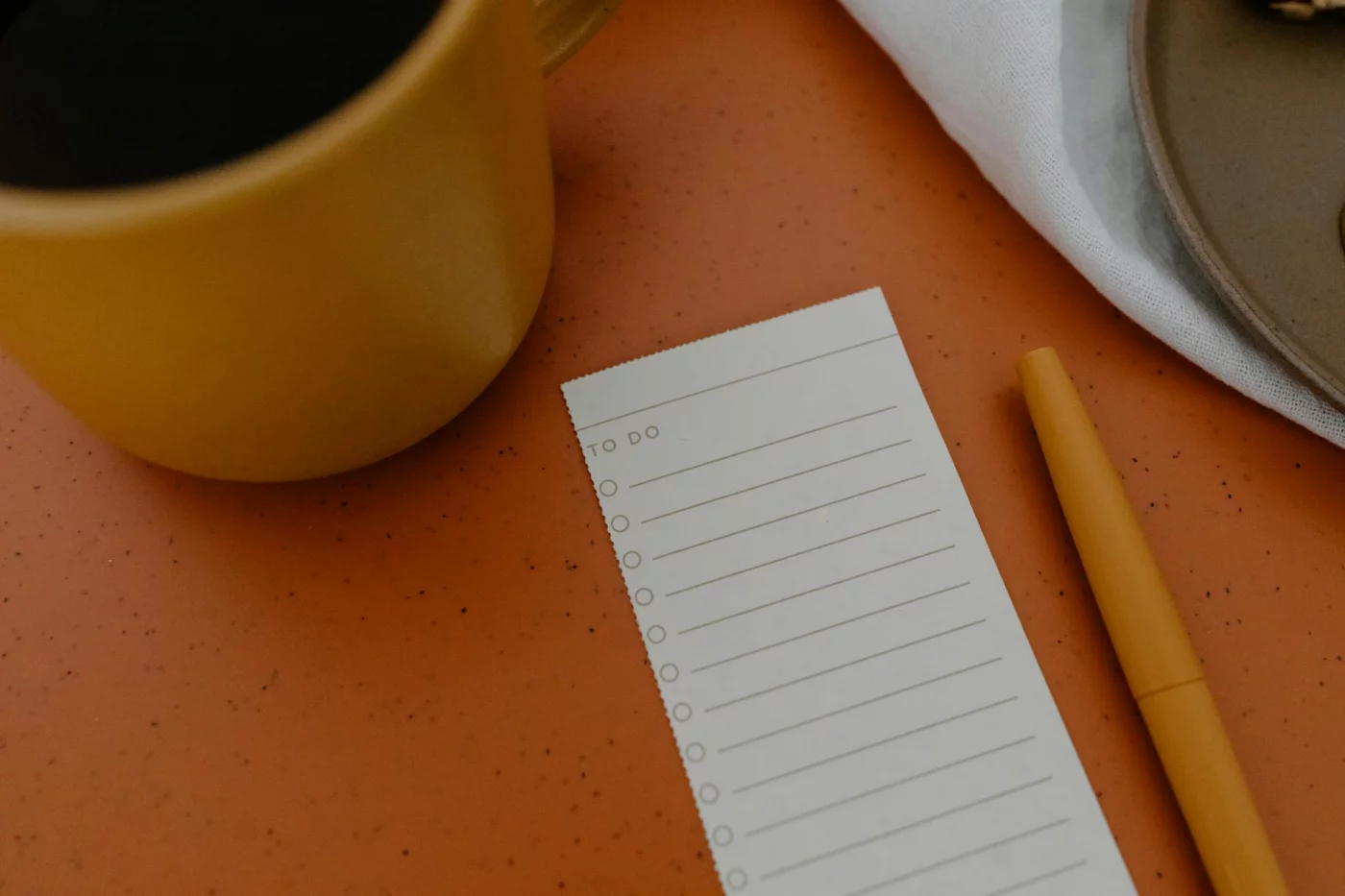
Here’s a printable workspace design for focus productivity template you can copy into Notes, Notion, or a sheet. OK wait, let me back up: don’t aim for perfect—aim for “measurable and fixable,” because that’s how to keep upgrades from turning into procrastination.
- Lighting (0–2): Desk brightness target 300–500 lux for reading/writing; screen work often feels best around 200–400 lux. If you can’t measure, use a phone lux app and note “AM/PM” since daylight shifts.
- Sound (0–2): Typical focus target: <50 dB at your ear for quiet work; <40 dB if you’re noise-sensitive. (Quick check: a phone dB meter + a 30-second sample during your busiest hour.)
- Air/comfort (0–2): If the room feels stuffy, you’re probably under-ventilated; many CO2 monitors flag 1000+ ppm as “needs fresh air.” For a plain-language baseline on ventilation and indoor air, see CDC guidance on improving ventilation.
- Ergonomics (0–2): Monitor top near eye level; screen about an arm’s length away (roughly 50–70 cm); elbows near 90 degrees; feet supported. For evidence-based posture basics, the OSHA ergonomics overview is a solid reference.
- Layout/zoning (0–2): One “active surface” for the current task only; everything else goes behind you or in a bin/drawer.
- Visual clutter (0–2): Count items in your primary view cone (monitor + 60 cm around it). If it’s >15 objects, you’re likely paying a small attention tax.
- Digital boundaries (0–2): Phone placement: out of reach (at least 2 meters) during deep work; notifications off by default; one tab/window for the task.
- Organization/cables (0–2): “Cable reset time” test: can you clear your desk and be ready to work again in <60 seconds?
- Rituals/timers (0–2): Start cue (lamp on, playlist on, timer set) and stop cue (shutdown checklist). This is how to reduce decision fatigue at the start.
Template table (printable): Lever | Score (0/1/2) | What’s wrong (1 line) | Shopping list (if any) | Next action (15 minutes). Keep “Next action” tiny—because tiny is how to get momentum.
Watch + do note: SERPs show lots of video results for desk setup. Plan a future 60–120s setup video and add VideoObject schema so people can audit while watching.
Priority order: what to fix first for the biggest gains
Rule of thumb: fix sensory blockers first (glare, noise, heat), then ergonomics, then organization/aesthetics. Personally, I think this is the part most people get wrong—they buy organizers before they stop the glare that’s frying their eyes.
Three common bottleneck profiles:
- A) Glare + eye strain: move the screen perpendicular to windows, add a desk lamp, and reduce overhead glare. If your eyes feel “dry/tired” after 30 minutes, lighting is your bottleneck.
- B) Noisy/shared space: add a consistent noise layer (fan/white noise), use closed-back headphones, and create a visual “do not interrupt” cue. And control interruptions—task switching leaves residue; see our attention residue breakdown for the mechanism and fixes.
- C) Cramped laptop-only setup: raise the laptop (books/stand), add an external keyboard/mouse, and create a single active surface. For a small desk setup for productivity, vertical space wins: a monitor riser/shelf plus one clear work zone is often the best workspace design for focus productivity per dollar.
Fix the biggest bottleneck first. That’s how to get noticeable gains without redoing your whole room.
Template presets: deep work, calls-heavy, and studying at home
Use presets when you’re tired. Seriously. A preset is how to make a simple workspace design for focus productivity feel automatic.
- Deep work (writer/dev): warm-neutral light (no glare), phone out of reach, single-task surface, timer visible, and steady noise masking. Keep only the current notes in view.
- Calls-heavy: camera-friendly front lighting, mic close (less gain = less noise), quick-access notes, a visible mute indicator, and a controlled background. Your goal is fast context shifts without desk chaos.
- Studying at home: textbook stand, active recall cards/questions visible, a “distraction bin” for phone/remote, and a backpack hook so clutter doesn’t spread. A minimalist desk setup for focus works best when “study mode” has a start ritual and a clean stop.
Next, we’ll get specific about the physical specs—best lighting for focus at desk, noise targets, and air/comfort—so you can tune each lever with numbers instead of vibes.
Focus-friendly workspace specs: best lighting for focus at desk + noise + air
You’ve got the focus levers and the checklist. Now you need specs you can actually hit, so you’re not guessing in the dark (literally).
So here’s the deal: when people ask how to build a focus-friendly desk, the answer is usually three dials—light, sound, and air. If your sleep and stress are shaky, fix those inputs too, because your workspace can’t out-muscle poor recovery; start with Stress & Sleep Tools.
Lighting targets: lux, Kelvin, glare, and blue light at night
The best lighting for focus at desk isn’t “bright” or “warm.” It’s measurable: illumination lux on the work surface and color temperature Kelvin that matches the time of day.
Targets that work for most people:
- 300–500 lux for general reading, typing, and coding.
- 500–1000 lux for detail-heavy tasks (math, drawing, spreadsheets), as long as you control glare.
Want a simple way how to check this without a meter? Use a phone lux app as an approximation: place your phone flat on the desk where your notebook/keyboard sits, face the sensor up, and compare your reading to the ranges above. It won’t be lab-grade, but it’s good enough to catch “too dim” or “blinding.”
For color temperature Kelvin, think “cooler by day, warmer by night.” I aim for ~4000–5000K during daytime deep work, then shift to ~2700–3000K in the evening to reduce circadian disruption. Harvard Health has a clear overview of blue light effects on sleep: Blue light has a dark side.
Glare control is the part most people get wrong. And glare is sneaky: you’ll feel “tired” before you notice the reflection.
- Place your lamp to the side of your non-dominant hand (right-handed? lamp on the left) to reduce shadows.
- Keep bright windows off to the side, not directly in front/behind your monitor.
- Use blinds/curtains and a matte screen (or matte protector) for basic glare control.
- Add gentle bias lighting behind the monitor to reduce contrast and squinting.
OK wait—what about “circadian lighting” timing? As a rule of thumb, dim and warm your lights in the last 2–3 hours before bed; for a practical routine, see Sleep hygiene made simple. That’s how to keep evening work from stealing sleep.
Sound targets: dB ranges, sound masking, and acoustic fixes
Noise isn’t just volume. It’s unpredictability. That’s why the best setup is one where you know how to keep interruptions from pulling you into task switching—because every switch risks attention residue; see Attention residue explained.
Use noise level dB as a rough target:
- 30–40 dB (quiet library) is ideal for reading/writing-heavy deep work.
- 50–60 dB (typical office) is workable for routine tasks and many calls, but harder for complex writing.
If you can’t get quiet, use masking. Brown noise, a fan, or AC noise can beat random voices because your brain stops “checking” the sound. Placement matters: put the masking source behind you so your attention isn’t pulled toward the hallway/door.
Shared room? Don’t overthink it. Rugs, curtains, and a filled bookshelf help absorb and scatter sound, and a cheap door draft stopper reduces the door-gap “megaphone.” For hybrid/WFH, I like two micro-zones: a “call corner” (mic, brighter light) and a “deep work corner” (less visual clutter, stable sound).
Air + comfort targets: CO2, temperature, and thermal comfort
Air is underrated until you feel foggy. A practical proxy is air quality CO2 ppm: many building and ventilation discussions use <800–1000 ppm as a “fresh enough to stay alert” band, even though it’s not a complete measure of indoor air quality.
For basics, the EPA’s indoor air quality pages are a solid starting point: Indoor Air Quality (IAQ). MedlinePlus also summarizes indoor air pollution sources and prevention: Indoor air pollution.
Quick actions that actually move the needle in a home office setup for deep work:
- Open a window 5–10 minutes each hour, especially after calls with multiple people in the room.
- Use a fan to move air toward the exit (window/door), not just around your face.
- Don’t block vents with boxes or curtains; that’s an easy how to sabotage your own alertness.
For temperature, most people focus best around 20–23°C (68–73°F), but your hands and feet matter more than you think. Before buying a new chair, try a small footrest, thicker socks, or a lap blanket—cheap fixes that improve thermal comfort fast.
Next up, we’ll lock in the physical side: an ergonomic desk setup for productivity, plus the mistakes that quietly cause pain and lost focus.
Ergonomic desk setup for productivity (plus the mistakes to avoid)
Once your lighting, noise, and air are handled, your body becomes the next bottleneck. An ergonomic desk setup for productivity is basically how to keep your brain from burning attention on discomfort every five minutes.
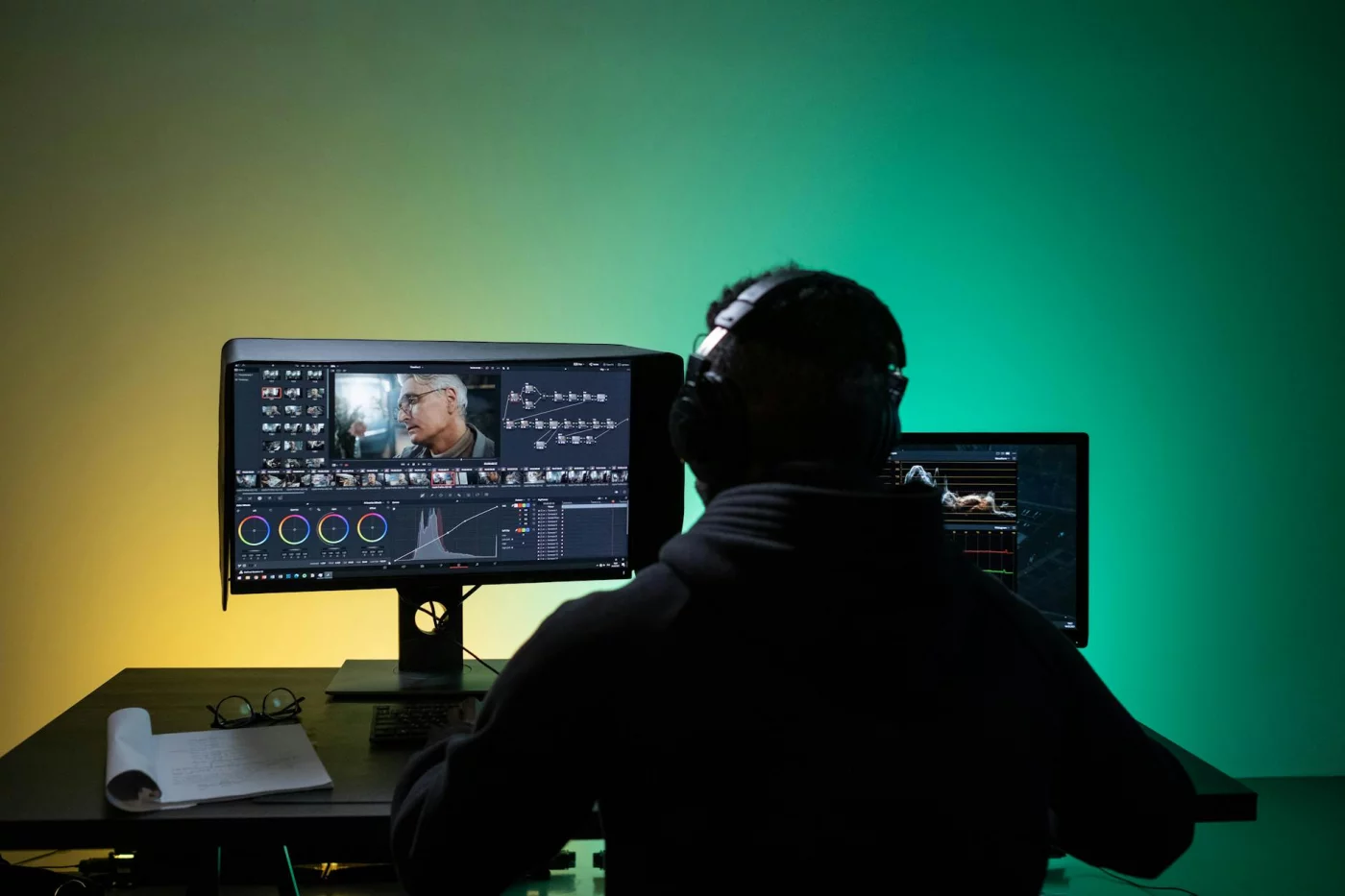
NIOSH’s office ergonomics guidance focuses on neutral posture, proper screen placement, and frequent position changes to reduce strain over long sessions (see NIOSH ergonomics resources). And if stress, poor sleep, or headaches are already in the mix, you’ll get more mileage by pairing setup changes with recovery basics from Stress & Sleep Tools.
Ideal monitor height and distance (quick measurements you can do now)
If you only change one thing, change your screen. Monitor height eye level placement is how to stop the slow neck creep that turns “deep work” into constant fidgeting.
Start with height: set the top bezel of the monitor at, or slightly below, your eye level when you’re sitting tall. If you wear bifocals or notice you’re lifting your chin to see clearly, lower the monitor a bit so you can look through the right part of the lens without neck extension.
Now distance. A solid monitor distance baseline is roughly an arm’s length, about 50–70 cm for most people, which aligns with common office ergonomics guidance from NIOSH and other occupational health sources.
- Distance check: you should read comfortably without leaning forward; if you’re creeping toward the screen, increase text size first, then fine-tune distance.
- Centering: keep the screen directly in front of you so your nose points at the middle of the display, not the edge.
- Two screens: put the primary one dead center; angle the secondary in, close enough that you don’t twist your neck.
Laptop-only posture is the classic productivity killer because it forces “head down, shoulders up.” The cheapest ergonomic desk setup for productivity upgrade under $50 is how to do laptop work properly: add an external keyboard + mouse, then raise the laptop on a stand (or a stable stack of books) until the screen is near eye level.
Chair/desk setup: neutral posture and fatigue reduction
OK wait, let me back up: your chair and desk decide whether your arms can relax. If your shoulders are tense, your attention will leak—quietly, all day.
Set seat height so your feet are supported and flat. If your chair is high and your feet dangle, add a footrest (a sturdy box works) and keep knees roughly at hip level or slightly below.
For your upper body, aim for elbows around 90° with shoulders down and relaxed, and wrists neutral (not bent up). This is how to reduce forearm fatigue that makes you “need a break” every 10 minutes for no obvious reason.
Desk depth matters more than people think. You need enough desk depth to keep the monitor distance (50–70 cm) without pushing the keyboard into your lap or forcing you to crane your neck forward.
What about a standing desk setup? Evidence and ergonomics practice generally support variety—switching postures and breaking up prolonged sitting—more than standing all day. Standing doesn’t help if your monitor is too low, your wrists are bent, or you’re craning toward a laptop screen.
Use a micro-break rule: stand, reset posture, or walk for 30–60 seconds every 20–30 minutes. And for longer sessions, pair breaks with your natural cycles using Ultradian rhythms focus cycles so you’re not “resting” only after you’re already cooked.
What to avoid: the 7 ergonomics traps that quietly kill focus
This is the part most people get wrong. They buy gear first, then wonder why focus still collapses.
- Perching on the chair edge: looks alert, but it loads your back and hips and increases fidgeting.
- Screen off-center: constant neck rotation adds up fast, especially in calls-heavy roles.
- Armrests blocking desk access: you end up reaching forward, shoulders rounding, wrists extending.
- Chair too soft: you sink, your pelvis tilts, and your spine fights gravity all session.
- Glare from a window behind the monitor: you squint, lean, and crank brightness, which raises strain.
- “Reaching zone” clutter: stuff you use often should be within forearm reach; otherwise you micro-reposition constantly.
- Standing desk with laptop-only: it’s the same neck problem, just upright.
And here’s the kicker — discomfort drives distraction. Your brain keeps checking the body signal (“is this safe?” “why does my neck hurt?”), which increases task switching and makes the best workspace design for focus productivity feel impossible.
Next up, we’ll shift from comfort to control: how to reduce distractions in workspace using layout, ADHD-friendly options, and simple organization that keeps your attention on one thing at a time.
How to reduce distractions in workspace: layout, ADHD-friendly options, and organization
You’ve got ergonomics handled. Now you need to protect attention, because even a perfect chair can’t save you from constant pings and visual clutter.
This section is about how to reduce distractions in workspace using layout rules plus digital boundaries, with ADHD-friendly options you can try at home. If stress or sleep are part of the distraction loop, start by checking your recovery basics with Stress & Sleep Tools.
Visual + layout distractions: zoning and the “only-one-task” surface
So here’s the deal: your desk should have “modes.” A simple home office setup for deep work beats fancy décor every time, especially in a small desk setup for productivity.
Create two zones: a deep work zone and an admin zone. If it’s the same desk, use a desk mat, tray, or laptop stand as a physical “mode switch” you can swap in 10 seconds.
- Deep work zone: one task, one screen focus, no piles.
- Admin zone: mail, notes, planning, charging, and anything that invites task switching.
Then enforce the “only-one-task” surface rule. Everything not needed for the current task goes into a bin or drawer, and you keep three items max visible: your current materials, a timer, and water. That’s how to reduce distractions in workspace without relying on willpower.
Small/shared space examples that actually work:
- Bedroom desk: position the monitor so the bed is behind you, not in your peripheral vision; it reduces “rest cues” while you’re trying to study.
- Kitchen table: use a portable focus kit (mat + pen + notebook + earbuds) so your workspace setup for studying at home appears and disappears fast.
- Shared room: add a simple privacy screen plus headphones to cut motion distractions from others walking around.
Lighting matters too. The CIE recommends typical office lighting around 500 lux for office tasks; if your desk is dim, you’ll fatigue faster and drift to your phone. See: CIE guidance on workplace lighting.
Digital distractions: boundaries, placement, and single-tasking cues
Digital distraction isn’t a personality flaw. It’s usually a placement problem plus permission settings you never chose.
Phone rule: put it out of arm’s reach, ideally in a drawer. If you need it for 2FA, place it face down on a defined “phone spot” behind your monitor so it’s available but not visually loud—this is how to reduce distractions in workspace without going offline.
Notification policy for deep work blocks:
- Allow calls/messages from favorites only.
- Batch email/DM checks 2–3 times/day (for example: 11:30, 3:30, 6:00).
- Turn off banner notifications; keep badges only if you must.
And here’s the kicker — use single-tasking cues. A simple “tab diet” works: 5 tabs max during focus blocks, with one being your timer or task list. If you want the underlying model, single-tasking explained breaks down why your brain pays a switching cost even when you think you’re “just checking.”
ADHD- and sensory-friendly options (practical, non-medical)
OK wait, let me back up. The goal isn’t to “force focus.” It’s to reduce friction and sensory overload so starting is easier.
Defaults help a lot for a desk setup for ADHD focus. Use the same pen, same notebook, same timer, and a pre-packed study kit; predictable tools lower decision load, which is often the hidden drain in a workspace setup for ADHD adults at home.
Sensory tuning options (pick one, don’t stack ten):
- Sound masking: brown noise or steady fan noise around ~45–55 dB (loud enough to mask, quiet enough to think).
- Light control: dimmable lamp; warmer light in the evening to reduce glare and “wired” feeling.
- Movement support: foot rocker, under-desk pedal, or a short standing interval every 25–50 minutes.
- Tactile support: a weighted lap pad or a small fidget that doesn’t require looking.
Personally, I think this is the part most people get wrong: they add more tools instead of removing friction. One good default beats five “productivity gadgets.”
Organization that stays organized: cables + the 2-minute reset
Organization only counts if it survives a bad day. So you need systems that reset fast.
Start with cable management ideas for desk setup, because “cable chaos” is visual noise and a constant micro-irritation. Aim for one rule: nothing touches your feet.
- Under-desk cable tray (or a simple basket screwed under the desk).
- Velcro ties for bundles; adhesive clips for edge routing.
- Label both ends of every cable (yes, both) so changes don’t become a 30-minute mess.
Then do the 2-minute reset routine at the end of your session. Clear the surface, coil/park cables, return items to their “home,” and place tomorrow’s first task on top. That’s how to keep a minimalist desk setup for focus while still supporting real studying.
Minimalism, but practical: remove duplicates, keep one active notebook, one small reference stack, and one charging hub. Which brings us to the next section: we’ll turn these rules into a step-by-step setup you can finish in 30 minutes, 2 hours, or a weekend—budget included, and no guesswork.
Step-by-step: set up your focus workspace in 30 minutes, 2 hours, or a weekend (with budget tiers)
You’ve already reduced distractions in your workspace. Now you’ll turn that into a repeatable setup you can rebuild fast—because the real win is consistency, not perfection.
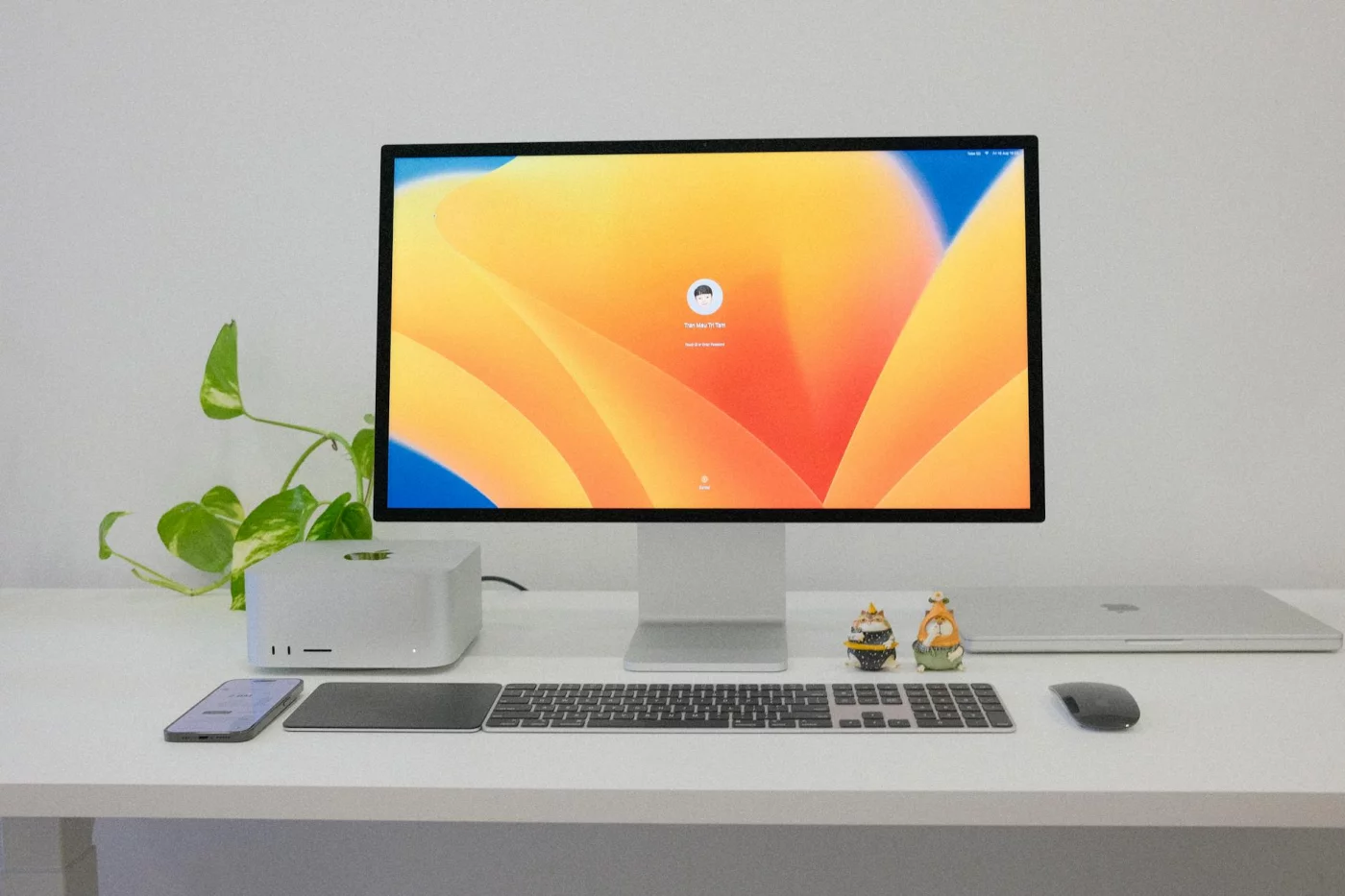
So here’s the deal: I’ll show you how to set up the same “9 levers” in three time tracks (30 minutes, 2 hours, weekend), plus budget tiers and a simple measurement plan. If stress or poor sleep is dragging your focus, pair this with Stress & Sleep Tools so your brain has the recovery fuel to actually use the setup.
How to… run the 9-lever audit (same order every time)
- Step 1: Screen placement (glare + sightlines)
- Step 2: Phone/notifications distance
- Step 3: One-task surface (only the current task lives here)
- Step 4: Timer + start ritual (make starting automatic)
- Step 5: Lighting (aim for work-bright, not cave-dim)
- Step 6: Sound (mask or block, depending on your space)
- Step 7: Zones (deep work vs calls/admin)
- Step 8: Reset station (2-minute cleanup loop)
- Step 9: Measure + adjust one lever at a time
How to… 30-minute reset (no shopping): quick wins
This is the focus workspace setup in 30 minutes version. And yes, it works even in a shared room, a dorm, or a kitchen table setup.
Lever 1–4 (layout + start): Put your screen perpendicular to the window to cut glare and squinting. Move your phone out of reach (across the room is best), clear a one-task surface, then set a visible timer so “starting” has a trigger.
Lever 5–6 (light + sound): Turn on the best lamp you already own and point it at the work surface, not your eyes. If sound is unpredictable, start consistent masking (fan, steady noise) so your brain doesn’t spike on every random bump—research on noise shows intermittent speech is especially disruptive compared to steady sound (see discussion of office noise in this review on noise and performance).
Lever 9 (measure): Use a phone lux meter app and a dB meter app to record “good enough” baselines (they’re approximate, but useful). Then write down your time-to-start for the next session (minutes from sitting down to real work). This is how to make a simple workspace design for focus productivity instead of a vibes project.
How to… 2-hour upgrade (low cost): lighting + sound + layout
Now this is where it gets interesting. You’ll use a workspace design checklist for deep work that prioritizes lighting, sound, and mode switching—because those give the biggest “felt” change per dollar in a typical home office setup for deep work.
Buy (or borrow) the basics: add a dimmable desk lamp and aim for roughly 300–500 lux at the desk surface for focused tasks (lighting guidance commonly falls in this range for office work; see lighting recommendations summarized by NIOSH/CDC lighting resources). Add a basic headset or earplugs if you can’t control noise. And add one tray/bin so you can switch modes (study vs admin) without exploding your desk.
Create zones: if you have two spots, make a deep work corner and a calls corner. If you only have one desk, use a desk mat as a “deep work flag”—mat down means one-task surface, mat up means admin. That tiny cue is how to reduce reconfiguration time.
Add a reset station: place a charging hub and 2–3 cable clips at the desk edge and aim for a 2-minute reset after each block. Cable management ideas for desk setup aren’t about aesthetics; they’re about removing micro-friction that delays starting.
How to… weekend rebuild (full): ergonomics + storage + aesthetics
If you’re rebuilding, treat ergonomics as your “best workspace design for focus productivity” foundation. Comfort isn’t luxury; it’s fewer posture shifts, less fidgeting, and lower fatigue.
Ergonomics first: add an external keyboard/mouse, monitor riser, and footrest if your feet don’t sit flat. Set monitor height so the top of the screen is near eye level and distance is roughly an arm’s length; many ergonomics guides recommend keeping elbows around 90–110° and wrists neutral (see workstation pointers from OSHA’s computer workstation eTool).
Storage next: use labeled bins, a vertical file, and one shelf. Define “homes” for study materials vs admin clutter so your workspace setup template for students doesn’t collapse during exam weeks.
Aesthetics with purpose: pick one calming visual (plant or art) and stop there. Minimalist desk setup for focus beats decor clutter every time, especially if you’re neurodivergent and sensitive to visual noise.
CTA + success metrics: lock in the habit with focus blocks
But wait—don’t leave the setup unused. The fastest how to make it stick is to schedule a focus block immediately using the Pomodoro technique for studying, time blocking, or deep work blocks; otherwise the desk “drifts” back to random piles.
- Track for 7 days: time-to-start (minutes), interruptions/hour (count), fatigue (1–10 after the block).
- Adjust one lever at a time: change lighting OR sound OR layout, then re-measure the next day.
- Match role to setup: writers/devs: stronger sound control + one-task surface; calls-heavy roles: separate call corner; ADHD-friendly: bigger phone distance + clearer zone cues.
Budget tiers (prioritized shopping list): under $50: lamp, laptop stand (or books), Velcro ties. Under $200: chair cushion/footrest, external keyboard/mouse, basic headset. $1000+: a real chair, monitor, and desk—buy in that order if you’re on the computer daily.
Next up, we’ll answer the common questions that pop up once you’ve tried this for a week—what to do when motivation drops, the room is noisy, or your setup isn’t “ideal.”
Frequently Asked Questions
How do I design my workspace for focus and productivity?
If you’re figuring out how to design a workspace for focus and productivity, start with a quick audit of nine levers: light, sound, air, ergonomics, layout, clutter, digital boundaries, organization, and rituals. Fix the biggest bottleneck first (well, actually… it’s usually either phone access, glare, or chair/monitor height), then track results for one week using time-to-start, interruptions per hour, and end-of-day fatigue. After that, change one lever at a time so you know what worked and what didn’t—this is the cleanest way to learn how to build a setup that stays productive.
What is the best desk setup for deep work at home?
The best home office setup for deep work is boring on purpose: a single-task surface, your phone out of reach, predictable lighting, and a clear start ritual (set a timer and keep the first task visible). If you’re not sure how to make it stick, write the first action on a sticky note and place it where your hands go first (keyboard or notebook). Tight space? Build a portable “deep work kit” (mat, headphones, notebook, charger) so you always know how to turn any table into a focus zone in under 60 seconds.
How can I reduce distractions in my workspace without buying anything?
To learn how to reduce distractions in workspace for free, do three moves first: move your phone out of arm’s reach, close visual clutter into a bin, and face your screen away from high-traffic areas. Then add an interruption signal (headphones on, a small sign, or a visible timer) and batch messages/email checks into 2–4 scheduled windows so you’re not constantly switching tasks. And yes, it sounds simple—but it’s exactly how to cut “micro-interruptions” that quietly wreck your focus.
What lighting is best for focus at a desk (lux and Kelvin)?
For best lighting for focus at desk, aim for roughly 300–500 lux for general desk work and 500–1000 lux for detail-heavy tasks, while keeping the light source off-axis to reduce glare on your screen. A solid rule for how to choose color temperature: use cooler-neutral light (about 4000–5000K) during the day, and switch to warmer light (about 2700–3000K) in the evening to support sleep timing. If you want the science context on light and circadian rhythms, see the NIH/NIGMS overview of circadian rhythms.
What noise level is best for concentration?
The short version of what noise level is best for concentration: many people do well with steady, low noise, while unpredictable speech tends to be the most distracting. If you can’t control the room, control the signal—use headphones with brown noise, and add soft furnishings (rug/curtains) to cut harsh reflections. Not sure how to test it? Try two 25-minute sessions (quiet vs. steady masking) and compare how often you re-read the same line or lose your place.
How high should my monitor be and how far away should it sit for productivity?
For ideal monitor height and distance for productivity, a reliable baseline is top of the screen near eye level and about an arm’s length away (often around 50–70 cm). If you’re on a laptop, the fastest way to learn how to fix neck strain is simple: raise it with a stand (or a stack of books) and add an external keyboard and mouse so your shoulders can relax. If your eyes feel dry or you lean forward, adjust distance first, then fine-tune height.
Does a standing desk improve focus and productivity?
Does a standing desk improve focus and productivity? It can—if it adds posture variety and reduces long, unbroken sitting, especially for calls or admin work where you don’t need ultra-fine mouse control. But wait: it can hurt focus if your monitor is too low or you stand for hours without breaks, because discomfort becomes the new distraction. The practical “how to” is to alternate sit/stand every 30–60 minutes and keep the screen at the same correct height in both positions.
What is the best workspace setup for ADHD focus at home?
The best workspace setup for ADHD adults at home usually means fewer steps and more defaults: a pre-packed kit, labeled homes for key items, a one-task surface, and consistent sound masking or lighting so you’re not re-deciding your environment every session. If you’re wondering how to make it realistic, pick one “anchor habit” (same seat, same timer, same playlist) and build the rest around it.
Conclusion: Build a workspace that makes focus the default
If you remember only a few moves, make them these: start by fixing light (put your main light source in front/side-front of you, reduce glare, and aim for steady brightness), then control sound (use a consistent noise layer or block peaks, not just “silence”), and clean up your visual field (remove what isn’t used daily, and keep one “active” zone on the desk). Next, lock in comfort: set chair height so your feet are flat, elbows near 90°, and your screen at eye level to avoid neck creep. And don’t overthink it—use the 30-minute setup to get a baseline, then iterate with the 2-hour or weekend upgrades once you’ve noticed what actually breaks your attention.
Now this is where it gets interesting. You don’t need a perfect office, a new desk, or a personality transplant. You just need a repeatable system—and a little patience while your brain adapts. If you’ve struggled with distractions (or you suspect you’ve got ADHD-style attention swings), you’re not “bad at focus”; you’re learning how to shape your environment so the right behavior is easier than the wrong one. Pick one lever today, test it for 48 hours, and keep what works.
Want more practical guides on how to study and work with less friction? Keep going on FreeBrain: read Spaced Repetition: how to remember what you learn and Deep Work: how to focus for longer (without burnout). Then choose one change, set a timer, and start building your focus-friendly workspace right now.