

If you’re looking for a getting things done gtd guide pdf because your brain feels like a browser with 47 tabs open, you’re in the right place. This getting things done gtd guide pdf is “PDF-style” on purpose: tight, practical, and built so you can set up GTD today without buying a new app.
Here’s the messy reality: your inputs don’t arrive politely. They hit you through email, Slack/Teams, voice notes, screenshots, and “quick questions” mid-task. And when those open loops pile up, your attention gets pulled around all day — which lines up with what the American Psychological Association’s overview of stress and its effects describes about stress stacking and reduced functioning. Sound familiar?
Quick definition (so we’re on the same page): Getting Things Done (GTD) is a workflow for capturing everything that has your attention, clarifying what each item means, organizing it into trusted lists, reflecting with regular reviews, and engaging with the right next action based on time, energy, and context. That’s the core. This getting things done gtd guide pdf shows you how to run it in 2026, with fewer contexts and cleaner list rules.
You’ll get a copy-paste starter setup (exact list names + naming conventions), a modern capture flow for email + Slack/Teams + mobile, and downloadable-style assets: a getting things done cheat sheet pdf-style summary, a clarify decision tree, a gtd weekly review checklist, and a trigger list. And yes, we’ll include gtd next actions examples and gtd project list examples for work, personal admin, students, and ADHD-friendly adaptations — plus notes on gtd setup in notion without making Notion the point.
And when you’re ready to execute, you can pair your lists with FreeBrain’s Focus & Productivity Tools, then turn a “next action” into a real plan using the Focus Session Planner. I’m Anas (FreeBrain’s founder), and I’ve spent years building and testing study/focus tools — which makes me slightly obsessed with systems that work under real-world noise.
📑 Table of Contents
- What is GTD + why this getting things done gtd guide pdf reduces overwhelm
- The getting things done gtd guide pdf workflow: Capture → Clarify → Organize → Reflect → Engage
- Step-by-step getting things done gtd guide pdf setup: copy-paste lists, tags, and capture tools
- Clarify + Organize in this getting things done gtd guide pdf: decision tree, next actions, and list rules
- Reflect + Engage: weekly review checklist, fewer contexts, and focus execution (getting things done gtd guide pdf)
- Common GTD mistakes to avoid + real-world examples + printable getting things done gtd guide pdf assets
- Frequently Asked Questions
- Conclusion
What is GTD + why this getting things done gtd guide pdf reduces overwhelm
If the intro made you think “my brain is running too many tabs,” you’re in the right place. This section explains what GTD actually is, and why a getting things done gtd guide pdf-style setup can make your days feel less fragmented. For more on productivity and focus, see our productivity and focus guide.
Before we talk lists and workflows, I want you to have a place to execute. That’s why I point most readers first to our Focus & Productivity Tools hub—because a clean system is useless if you still can’t sit down and do the next action.
GTD in one paragraph (snippet-ready)
GTD (Getting Things Done) is a workflow for capturing everything that has your attention, clarifying the very next action, organizing it into trusted lists, reviewing regularly, and engaging with confidence—so your brain stops acting like a fragile reminder app. That’s the core promise behind this getting things done gtd guide pdf.
Here’s the backbone, using the exact sequence you’ll see throughout this getting things done gtd guide pdf: “gtd capture clarify organize reflect engage.” Simple words. Big effect.
- Capture what’s pulling at you
- Clarify what it means and what “done” is
- Organize into the right list (not your head)
- Reflect with reviews so lists stay trustworthy
- Engage by choosing actions with context, time, and energy in mind
Who is this for? Students juggling assignments, busy pros drowning in messages, and people who tried GTD once, then quit because their lists became a second job. Sound familiar?
And yes—this getting things done gtd guide pdf is tool-agnostic first. We’ll map it later to Notion, Todoist, Apple Reminders, and Outlook without locking you into one app or one “perfect” setup.
Why GTD works (research-backed, not hype)
Your working memory is limited. The APA defines it as a system for holding and manipulating information briefly, which matters because “remember my tasks” competes directly with “think, learn, and solve problems” (APA Dictionary definition of working memory).
So when you keep open loops in your head—email you need to answer, form you must submit, assignment you should start—you’re paying a cognitive load tax all day. Externalizing those loops into a trusted inbox and clear next actions is the GTD move that frees capacity.
Now this is where it gets interesting. A huge part of overwhelm isn’t volume—it’s fragmentation, and the “sticky” feeling after switching tasks.
Harvard Business Review has covered how task switching leaves attention residue, meaning part of your mind stays stuck on the previous task, lowering performance on the next one (Harvard Business Review on why task switching is costly). GTD reduces that residue by making “what to do next” obvious, and by encouraging batching (process the inbox, then do focused work).
Quick terminology preview—because consistent names prevent messy systems. You’ll see: Inbox, Next Actions, Projects, Waiting For, Someday/Maybe, Reference, Calendar, and Tickler. Which list should “ask Sam for the contract” go on? You’ll know soon.
Personal note: I’m a software engineer who builds learning and productivity tools, and I’ve watched the same GTD failures repeat in user behavior data. Three breakpoints show up constantly: too many capture points (sticky notes + three apps), no processing habit (inbox becomes a graveyard), and unclear next actions (“work on report” isn’t a next action).
One safety boundary. This is educational, not therapy or medical treatment; if ADHD, anxiety, chronic stress, or sleep problems are driving your overwhelm, talk with a qualified professional. And at work, follow compliance rules—don’t store sensitive client or company data in unsecured personal tools.
What this guide includes (PDF-style assets + modern inputs)
This getting things done gtd guide pdf is designed like a printable kit, even if you run it digitally. You’ll get assets you can screenshot, print, or copy into your app of choice.
- A one-page “getting things done cheat sheet pdf” summary
- A capture/clarify decision tree (what to do with any input in 10 seconds)
- A “gtd weekly review checklist pdf” you can reuse every week
- A trigger list to surface hidden projects (admin, health, finances, school)
And here’s the kicker — modern inputs are the real problem in 2026. We’ll set up capture for email, Slack/Teams, mobile widgets, voice notes, and screenshots, while still keeping fewer contexts (because 18 context lists is just procrastination with labels).
When you’re ready to engage, you’ll turn “Next Actions” into a real plan using the Focus Session Planner. For reflect, you’ll build the weekly review as a habit you can actually keep—tracked with the Habit Streak Tracker.
You’ll also see at least 20 concrete examples across work, personal life, and student workloads, plus a “Reddit myths vs reality” callout (inspired by the usual getting things done gtd guide reddit debates, without quoting anyone). Next up, we’ll walk the full workflow—Capture → Clarify → Organize → Reflect → Engage—step by step.
The getting things done gtd guide pdf workflow: Capture → Clarify → Organize → Reflect → Engage
In the last section, we defined GTD as a way to stop carrying open loops in your head. Now let’s turn that idea into an end-to-end workflow you can actually run from your phone, laptop, and brain—without chaos.
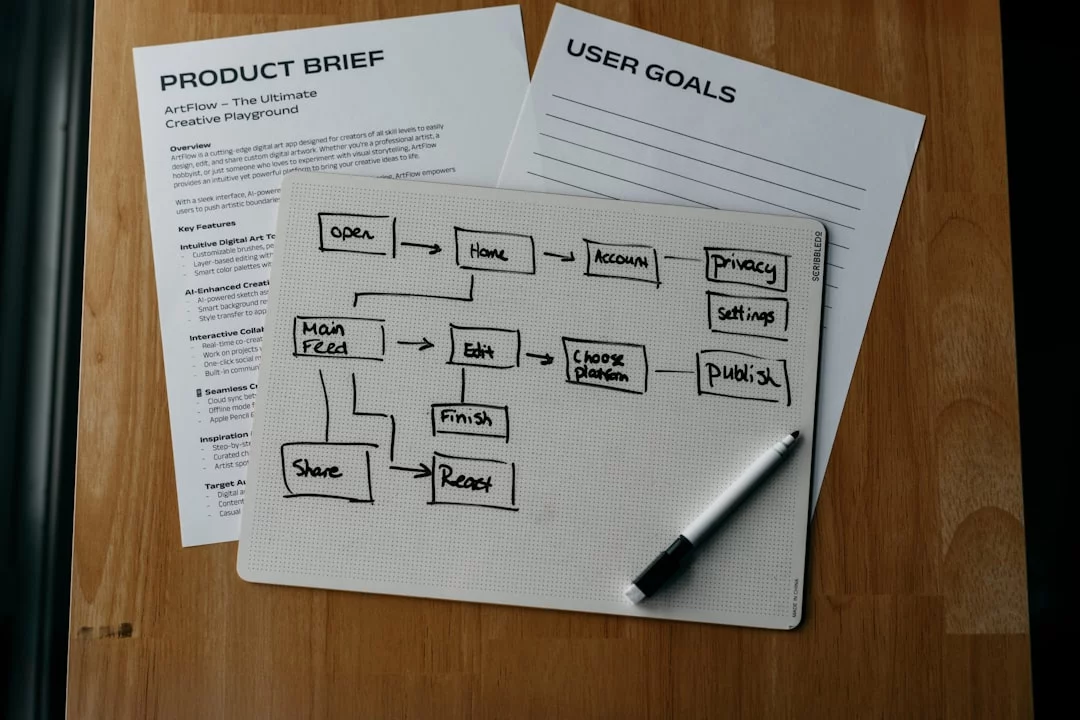
If you’re using a getting things done gtd guide pdf as your reference, this is the page you keep coming back to. And if you want help turning “Next Actions” into real work blocks, start with our Focus & Productivity Tools hub—because lists don’t execute themselves.
The core loop is simple. Inputs (email, Slack, voice notes, meeting notes) go into an inbox, you make one decision, and the item lands on the right list.
- Capture
- Clarify
- Organize
- Reflect
- Engage
Here’s the deal: you can have multiple capture points (phone widget, notebook, email flag), but you need one inbox you trust for processing. Otherwise, your getting things done gtd guide pdf becomes “another system you half-use,” and your brain goes right back to hoarding reminders.
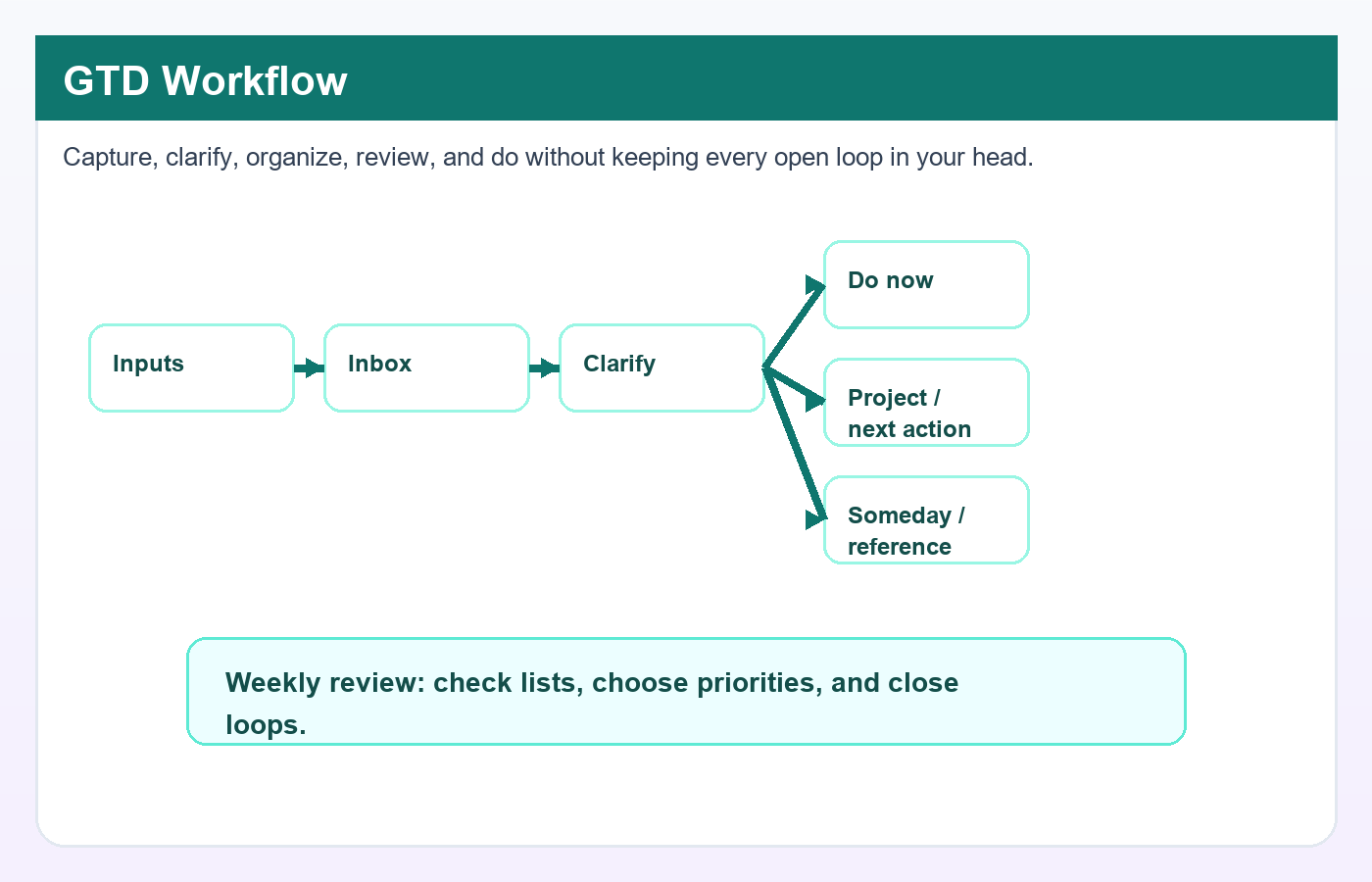
A simple map: input → decision → list (what goes where)
Think of the getting things done workflow as a router: every input gets clarified into a next step (or not), then organized into a destination list. Your main destinations are: Calendar (hard landscape only), Next Actions (the very next visible step), Projects (anything with 2+ steps), Waiting For (someone else owes you), Someday/Maybe (not now), Reference (no action), and Tickler (resurface later). Full definitions come later, but this map is the backbone of any getting things done gtd guide pdf you’ll ever use.
- Slack: “Can you review?” → Waiting For: “WF—Sam—review PR #184” (a classic waiting for list item).
- Email: “Confirm meeting time” → Next Actions: “Reply with 2 time options.”
- Note to self: “Renew car registration” → Calendar: “DMV appointment Tue 10:30” (hard landscape, not a wish).
- Meeting note: “Redesign onboarding” → Projects: “Project—Onboarding redesign” + next action “Draft 5-step flow.”
- Text from friend: “Send your address” → Next Actions: “Text address.”
- PDF you want to keep: “Benefits policy” → Reference: “HR/Benefits/2026 policy.pdf.”
One compliance note. If you handle sensitive work (client data, medical info, legal matters), your “inbox you trust” must be an approved system—don’t dump confidential items into personal apps just to follow a getting things done gtd guide pdf.
The 2-minute rule: when to use it (and when not to)
The 2-minute rule is simple: if you’re in processing mode and it truly takes under 2 minutes, do it. But wait—guardrails matter, because “quick tasks” can become procrastination-by-busywork.
Use it during processing windows (like 15–30 minutes after lunch), not randomly all day. The American Psychological Association summarizes how task switching and constant interruptions hurt performance and focus, which is exactly what GTD is trying to prevent: APA guidance on multitasking and attention.
- Do now: Reply “Yes, 3pm works” (real <2 minutes). Defer: “Fix website checkout” (that’s a project, not a next action).
- Do now (student): Email professor a single clarification question. Defer: “Study for midterm” → next action: “Open syllabus, list 6 topics, pick Topic 1.”
- Do now (personal admin): Cancel a subscription you already found in your email. Defer: “Rebuild budget” → next action: “Export last 30 days transactions.”
- Do now: Add a date-specific item to calendar. Defer: “Plan summer trip” → project + next action: “Pick 3 possible weekends.”
The common failure is brutal: you do 20 two-minute tasks, feel productive, and never clarify the big projects that are actually stressing you out. A good getting things done gtd guide pdf treats the 2-minute rule as a scalpel, not a lifestyle.
Reddit myths vs reality (quick callout)
Myth: contexts are mandatory (hello, getting things done gtd guide reddit debates). Reality: they’re optional, and “gtd without contexts modern setup” often works better in 2026—use fewer buckets like Focus, Admin, Errands, Calls, then filter by time/energy.
Myth: your calendar holds your whole to-do list. Reality: the calendar is the hard landscape only—appointments, deadlines, and time-specific commitments. That’s straight from the GTD idea itself, and it matches the standard definition of GTD’s calendar use: Wikipedia’s overview of Getting Things Done.
Myth: GTD is a rigid app setup. Reality: it’s a thinking process; tools are just containers. Which brings us to execution: once you’ve clarified and organized, you still need to engage—and I like turning Next Actions into a focused plan using the Focus Session Planner, then reviewing weekly consistency with the Habit Streak Tracker.
Next up, we’ll do the practical setup: copy-paste lists, naming conventions, tags, and capture tools so your getting things done gtd guide pdf system works across Notion, Todoist, Apple Reminders, and Outlook without getting tool-locked.
Step-by-step getting things done gtd guide pdf setup: copy-paste lists, tags, and capture tools
You’ve got the workflow. Now you need a setup that’s boringly reliable.
This getting things done gtd guide pdf section is the copy-paste build: lists, tags, and capture tools you can run in Todoist, Notion, Apple Reminders, or Outlook without getting tool-locked. For execution later, keep FreeBrain’s Focus & Productivity Tools handy—just don’t “optimize” yet.
How to set up a minimum GTD system (10 minutes)
- Step 1: Create exactly one Inbox.
- Step 2: Create the seven core lists (below).
- Step 3: Add 4–6 context tags + energy/time tags.
- Step 4: Turn on 2–3 capture methods (phone + email + paper).
- Step 5: Pick one weekly review slot and protect it.
📋 Quick Reference
Terminology (use these consistently): “Inbox” = unprocessed inputs. “Next Action” = the next visible physical step. “Project” = any outcome requiring 2+ actions. “Tickler file” = future reminders by date. “Reference system” = non-actionable info you might need later.
Minimum viable GTD lists (start here, don’t overbuild)
Minimum viable means: one Inbox, 4–6 contexts max, and one weekly review slot. That’s it. If you add more, you’ll stop trusting your system—then you’ll stop using it.
Copy-paste these list names from this getting things done gtd guide pdf and keep the spelling consistent:
- Inbox
- Next Actions
- Projects
- Waiting For
- Someday/Maybe
- Reference
- Calendar (date-specific only)
- Tickler (future prompts; date-sorted)
Want gtd lists explained with real items? Here are starter examples (steal them). And yes, you should prefill a few—blank systems don’t stick.
- Inbox: “Screenshot: meeting notes,” “Mom asked about passport,” “Idea: automate monthly report,” “Slack: ‘can you review?’,” “Buy printer ink”
- Next Actions: “Email Dr. Lee about appointment options,” “Call bank to raise transfer limit,” “Draft 5-bullet outline for lab report,” “Book dentist cleaning online,” “Reply to Sam with 2 meeting times”
- Projects: “Submit internship application (complete),” “Move apartments (done),” “Launch v1 portfolio site (live),” “Finish statistics midterm prep (ready),” “Renew car insurance (confirmed)”
- Waiting For: “WF—Nora—budget numbers—Mar 14,” “WF—IT—laptop replacement ETA—Mar 18,” “WF—Professor Kim—recommendation letter—Mar 22”
- Someday/Maybe: “Learn Blender basics,” “Read ‘Deep Work’,” “Start a 5k plan,” “Build a home NAS,” “Take a weekend trip to Lyon”
- Reference: “Wi‑Fi router login,” “Tax receipts 2026,” “Course syllabus PDFs,” “Medical insurance policy PDF,” “Apartment lease scan”
- Calendar: “Therapy appointment Tue 3pm,” “Midterm Thu 10am,” “Car service May 9,” “Rent due 1st,” “Flight 8:40am”
- Tickler: “Apr 1: renew domain,” “May 15: send birthday gift,” “Next Fri: check on refund,” “Jun 30: annual physical reminder,” “Aug 20: course registration opens”
Tags next. Use these across tools: @Focus, @Admin, @Calls, @Errands, @Computer plus Energy (Low/Med/High) and Time (5m/15m/30m/60m). This is the part that makes your getting things done gtd guide pdf usable on a messy day.
Naming conventions that prevent vague tasks
This is the part most people get wrong. Vague tasks create avoidance, and avoidance kills GTD.
Rule 1: Next Actions start with verb + object. “Email Dr. Lee about appointment options” beats “Doctor.” “Draft 5-bullet intro for report” beats “Report.” If you want the psychology behind why concrete actions reduce friction, APA’s overview on procrastination and task avoidance is a solid primer.
Rule 2: Projects are outcomes. Write them like a finished state: “Submit internship application (complete),” not “Internship.” OK wait, let me back up—if you can’t picture “done,” you can’t plan the next move.
Rule 3: Waiting For uses one format everywhere: WF—Name—Thing—Due date. Examples: “WF—Nora—budget numbers—Mar 14,” “WF—IT—VPN access—Mar 12,” “WF—Dad—passport photo—Mar 16.” That format makes scanning fast, which is the whole point of this getting things done gtd guide pdf.
Capture tools (2026 reality): email, Slack/Teams, mobile, screenshots
Capture everywhere. Process in one place. That’s the deal.
Pick 2–3 capture methods you’ll actually use: phone widget/lock-screen shortcut, paper notepad, email-to-inbox, and voice note. If you live in chat, don’t leave tasks in threads—ever. Convert them to your Inbox by forwarding to email, starring then batch-exporting, or copying the message link into an Inbox item (depending on your workplace rules).
For screenshots, use this triage in 10 seconds: keep (goes to Reference), act (goes to Inbox), delete (trash). It sounds small, but it prevents “camera roll as task manager,” which is chaos.
And a quick compliance reminder: if you’re capturing from Slack/Teams or work email, follow your org’s data policies and don’t move sensitive info into personal apps. For a plain-language definition of tickler files and GTD terms, Wikipedia’s Getting Things Done overview is accurate enough for terminology checks.
Once your lists exist, you’ll need a way to turn Next Actions into a realistic work block. That’s where FreeBrain’s Focus Session Planner helps—especially when your tags say “Low energy, 15 minutes.”
Next up, we’ll do Clarify + Organize inside this getting things done gtd guide pdf: the decision tree, what counts as a next action, and the list rules that keep your system from going stale.
Clarify + Organize in this getting things done gtd guide pdf: decision tree, next actions, and list rules
You’ve captured everything. Good. Now the getting things done gtd guide pdf only starts working when you clarify what each item means and where it belongs.
This is the part that makes your system feel “trusted” instead of noisy. And if you want a tighter workflow for planning and execution, start with our Focus & Productivity Tools hub and pick one tool you’ll actually use daily.
Clarify: the processing questions (decision tree you can memorize)
Here’s the GTD decision tree in plain text. Memorize it once, then run it like a script. That’s the core of this getting things done gtd guide pdf section.
- What is it? (Be specific. “Email” isn’t a thing. “Vendor invoice question” is.)
- Is it actionable?
- No → Trash / Reference / Someday/Maybe (incubate)
- Yes → decide the next action
- Is the next action < 2 minutes? If yes, do it now.
- Is it mine?
- No → Delegate, then track it on Waiting For
- Yes → Defer (put the next action on your list) or put it on the calendar if time-specific
That’s the “gtd decision tree for processing inbox” in one pass. If you tend to freeze at decisions, build the habit of making a small commitment, then renegotiating later; I wrote a practical approach in Science-based decision confidence.
Processing checklist (fast): name it, decide actionable vs not, choose next action, apply 2-minute rule, assign ownership, park it in the right list. Do this for 10 items, not 200. Momentum matters.
Six “not actionable” examples (and where they go):
- “Interesting article on sleep” → Someday/Maybe if you might read; Reference if you’re collecting sources for a project
- “Old meeting invite (already happened)” → Trash
- “Warranty PDF for laptop” → Reference
- “Idea: start a newsletter” → Someday/Maybe
- “Receipt photo (reimbursable?)” → Reference if filed; otherwise it’s actionable (“submit reimbursement”)
- “Conference ad” → Trash unless you’re considering attendance (then actionable: “check dates/budget”)
Next actions: definition + quality checklist (what ‘clear’ looks like)
A next action is the very next visible, physical step you can take. Not a wish. Not a category. In a good getting things done gtd guide pdf, next actions feel almost boring.
- Starts with a verb (call, draft, open, compare, book)
- Has a visible outcome (“draft 3 bullets,” not “work on report”)
- Is the first physical action (what your hands do next)
- Small enough to start (often ≤ 30 minutes, when possible)
- Includes a tool/location if needed (LMS, bank app, lab, Outlook, kitchen)
Quick sidebar: “If-Then” planning can help you stick the landing. Philosophers and cognitive scientists treat intention as a commitment structure, not just a desire; see the Stanford Encyclopedia of Philosophy on intention for background (not a productivity guarantee). Example: “If it’s 9:00 and I open my laptop, then I’ll draft the first three bullets.”
Six clear next actions (steal these):
- “Draft 3 bullet points for Friday’s status update in Slack.”
- “Open LMS and download the rubric for Week 6 assignment.”
- “Call dentist and ask for the earliest cleaning appointment.”
- “Reply to Alex: confirm budget range ($X–$Y) and deadline.”
- “Open spreadsheet and add the last 2 receipts from camera roll.”
- “Compare two laptop chargers on Amazon and save the cheaper one to cart.”
And when you’re ready to turn a next action into a real work block, plan it in the Focus Session Planner so you choose duration, friction level, and a finish line.
Organize: list rules (projects, calendar, waiting for, tickler)
Organizing is just applying rules consistently. The getting things done gtd guide pdf works across Notion, Todoist, Apple Reminders, and Outlook because the lists are tool-agnostic.
Projects vs next actions: if it takes 2+ actions, it’s a project (“Renew passport”). Your Projects list is a map, not a task list. Every active project must have at least one next action parked on a Next Actions list.
Ten vague → next action transformations (work, personal, student):
- “Update resume” → “Open resume doc and add last role’s 3 metrics.”
- “Study biology” → “Do 15 quiz questions on cell respiration (Chapter 4).”
- “Fix budget” → “Open bank app and export last month’s transactions.”
- “Plan trip” → “Check flight prices for Fri–Mon and screenshot top 2 options.”
- “Clean kitchen” → “Empty dishwasher and put away dishes.”
- “Project proposal” → “Write the problem statement (5 sentences) in Google Doc.”
- “Email professor” → “Draft 4-line email asking for office hours this week.”
- “Team meeting prep” → “List 3 risks + 1 ask for tomorrow’s standup.”
- “Car maintenance” → “Call garage and ask cost/time for oil change.”
- “Learn Python” → “Complete Lesson 2 exercises and note 3 errors you hit.”
Calendar = hard landscape only. Put only time-specific actions and real commitments there. Belongs: “Therapy 3:00,” “Submit application by 11:59pm,” “Call with client 10:30,” “Flight 6:20,” “Exam 9:00.” Doesn’t belong: “Work on report,” “Read chapter,” “Brainstorm ideas,” “Clean room,” “Reply to emails.”
Waiting For: anything delegated or pending from others, with a date and next follow-up action (“Waiting for Sam to send contract draft — nudge Friday”). Someday/Maybe holds optional commitments without guilt. Project support material lives outside your action lists (docs, links, notes) so your Next Actions stay clean.
Tickler file: use dated reminders (digital) or 43 folders (paper: 31 daily + 12 monthly). Examples: “Renew license in May,” “Bring form to appointment on the 18th,” “Follow up on refund if not received by next Tuesday.”
That’s clarify + organize. Next, we’ll make it stick with Reflect + Engage: a weekly review checklist, fewer contexts, and execution that doesn’t fall apart when life gets loud—still inside the getting things done gtd guide pdf workflow.
Reflect + Engage: weekly review checklist, fewer contexts, and focus execution (getting things done gtd guide pdf)
You’ve clarified and organized. Good. Now you need the part that makes a getting things done gtd guide pdf feel “real” in daily life: Reflect (review) and Engage (do).
Thing is, if your review is sloppy, your doing gets sloppy too. And if your doing isn’t focused, your lists turn into a graveyard. For execution support, start with our Focus & Productivity Tools hub and pick one tool you’ll actually use this week.
📋 Quick Reference
Daily (5 min): scan calendar + top 3 next actions + one “waiting for” ping.
Weekly (30–60 min): clear inboxes → review calendar → review lists → refresh projects → add ideas.
Engage filter: context + time + energy + priority (with fewer contexts, use tags).
Execution bridge: next action → 25–50 min session plan → break → re-evaluate.
Weekly Review checklist (copy/paste, with timing)
Your weekly review is the “trust rebuild.” Miss it for two weeks and your getting things done gtd guide pdf system starts feeling fake, because your brain stops believing the lists.
Plan 30–60 minutes once a week. Then add a daily mini-review (5 minutes) so your system stays current without needing hero-level willpower.
Before you start, do a 2-minute reset with the Box Breathing Timer. OK wait, let me back up: this isn’t “woo.” Slow breathing can reduce physiological arousal, which makes it easier to face uncomfortable open loops instead of avoiding them.
- Daily mini-review (5 min): check today’s calendar, pick your top 3 next actions, scan “Waiting For,” and capture any new inputs.
- Weekly review (30–60 min): use the checklist below, in order, without multitasking.
Copy/paste GTD weekly review checklist (timed):
- Get clear (10–15 min): empty all inboxes (email, notes, Slack/Teams DMs, screenshots, paper). Convert each item to trash, reference, someday/maybe, waiting for, calendar, or a next action.
- Get current (10 min): review past 7 days calendar for loose ends; review next 2–4 weeks for prep actions.
- Review lists (10–20 min): scan Projects, Next Actions, Waiting For, Someday/Maybe, and checklists (home, errands, admin). Update at least one next action per active project.
- Get creative (5–10 min): add new ideas, improvements, and “nagging thoughts” to capture—don’t judge them yet.
List hygiene rules (non-negotiable): prune stale items (if you haven’t touched it in 30 days, either delete, defer, or re-commit). Renegotiate commitments (replace “should” with a real choice). And re-clarify fuzzy tasks into a visible physical next action (“Draft 5 bullet points,” not “Work on proposal”). This is the maintenance layer in any getting things done gtd guide pdf that actually works.
Engage: the 4 criteria model (and the modern fewer-contexts version)
GTD’s Engage model uses four filters: context, time, energy, and priority. If you only use “priority,” you’ll keep picking emotionally loud tasks, not strategically right ones.
Examples help. Context: “Call dentist” needs phone. Time: “Pay bill” fits 10 minutes. Energy: “Write outline” needs high focus. Priority: “Submit invoice today” beats “organize downloads.”
But wait—classic GTD contexts (@Office, @Home, @Computer) can be overkill in 2026 workflows where your phone is everywhere. A modern getting things done gtd guide pdf setup usually works better with 3–5 contexts plus time and energy tags: @DeepWork, @Admin, @Errands, @Calls, @Home; tags like 10m/30m/60m and Low/Med/High energy.
Quick mini-table you can apply instantly:
- If you have 10 minutes + low energy: pick @Admin + 10m (unsubscribe, file receipt, schedule appointment).
- If you have 45 minutes + medium energy: pick @Calls + 30–60m (two calls + notes).
- If you have 90 minutes + high energy: pick @DeepWork (design doc, problem set, coding).
And yes, energy is real. Sleep debt and stress change what you can do, even if motivation is high; if sleep is a persistent issue, start with basics like CDC sleep resources and talk to a qualified professional if needed (this is educational, not medical advice).
Turn a next action into a focused work session (execution bridge)
This is the part most people get wrong. A next action is a choice; execution needs a container. Without that container, attention residue builds up when you task-switch—research in cognitive psychology has long shown switching costs, especially when you leave tasks half-finished.
So here’s the bridge: convert “Next Action” into a 25–50 minute focus block with a finish line, then take a short break. Use the Focus Session Planner to turn one next action into a session plan you can start immediately.
- Work example (50/10): Next action “Draft client update.” Session plan: open last email → write 5 bullets → convert to 6-sentence update → send draft to yourself → stop.
- Study example (25/5): Next action “Do 10 calculus problems.” Session plan: pick problems 1–10 → set timer → solve until timer ends → mark misses → write 3-line error note → stop.
High-friction task? Do 1 minute of box breathing first, then start with a “minimum viable step” (open the doc, write the ugly first line). Keep your getting things done gtd guide pdf system honest by finishing sessions with a quick re-check: did this create a new next action, a waiting-for, or a calendar item?
Next up, we’ll cover the failure modes—stale lists, too many projects, and vague actions—and I’ll share printable assets for your getting things done gtd guide pdf workflow so you can fix issues fast.
Common GTD mistakes to avoid + real-world examples + printable getting things done gtd guide pdf assets
If your weekly review felt clean but your week still derailed, this is usually why. The fastest fix is spotting the failure mode early, then using a few “default moves” you can repeat from your getting things done gtd guide pdf.

Before you swap apps again, anchor your workflow around one place you can return to when things get messy. I keep pointing people to Focus & Productivity Tools because the goal isn’t a prettier system—it’s a system you’ll actually run when you’re tired.
Why GTD fails after a few weeks (diagnostic checklist + 10-minute reset)
Most “why gtd stops working after a few weeks” stories aren’t about motivation. They’re about list hygiene breaking quietly until you stop trusting your system. And then you avoid it.
Here’s a diagnostic checklist you can paste into your getting things done gtd guide pdf and use like a smoke alarm: symptom → likely cause → fix.
- Symptom: Your inbox is always full. Cause: too many capture points, no daily processing habit. Fix: reduce to 1–2 capture points (phone + paper), then schedule a 10-minute “clarify” block daily.
- Symptom: Projects list looks “busy” but nothing moves. Cause: projects with no next actions. Fix: every active project must have a visible next action that starts with a verb.
- Symptom: You keep rewriting tasks. Cause: unclear next actions causing avoidance. Fix: rewrite as a 2–10 minute physical action (“Open doc and write 3 bullets”).
- Symptom: You miss deadlines despite “planning.” Cause: calendar abuse (wishful time-blocking). Fix: calendar is only for time-specific commitments and hard deadlines; everything else stays on lists.
- Symptom: You dread your lists. Cause: stale lists + too many tools. Fix: one task manager + one calendar; archive aggressively during weekly review.
From analyzing tool usage patterns on FreeBrain, the break point is usually the same: people capture a lot (fast), but they under-process (slow). The result is a “junk drawer inbox,” which makes the whole system feel heavier every week.
How to…
- Step 1: Collect loose inputs (2 minutes). Dump sticky notes, screenshots, Slack/Teams pings you flagged, and mental open loops into one inbox.
- Step 2: Process top 10 inbox items (5 minutes). For each: trash, file, delegate, or write the next action.
- Step 3: Ensure every active project has a next action (2 minutes). If it doesn’t, it’s not “real” yet—park it in Someday/Maybe.
- Step 4: Pick one focus block for today (1 minute). Choose a single next action you’ll finish, not just “work on.”
If the issue is avoidance (not organization), troubleshoot the emotion, not the app. Use the Procrastination Trigger Quiz to identify what’s driving the stall (uncertainty, fear of feedback, perfectionism), then rewrite the next action to remove that friction inside your getting things done gtd guide pdf.
Real-life GTD examples (work, personal, students, ADHD-friendly)
Examples beat theory. So here are concrete “project → next action → waiting for → outcome” patterns you can copy into your getting things done gtd guide pdf and your getting things done template.
Work scenario: cross-functional launch. Project: “Release onboarding v2.” Outcome: new flow live for 100% of new users. Next actions and Waiting For items (six real ones):
- Next action: Draft 5 onboarding steps in doc (15 min). Waiting For: PM approval on step order.
- Next action: Email design with copy constraints (5 min). Waiting For: design mock by Thursday.
- Next action: Create Jira ticket: “Track drop-off at step 3” (10 min). Waiting For: analytics event names from data team.
- Next action: Book 20-min QA handoff (2 min). Waiting For: QA confirms test plan.
- Next action: Write rollback checklist (12 min). Waiting For: DevOps confirms deploy window.
- Next action: Ping legal about consent text (3 min). Waiting For: legal wording approval.
Student scenario: exams + assignments. “Study biology” isn’t a next action. Better: “Create 15 active-recall questions for Chapter 6,” then “Do 10 questions timed,” then “Schedule spaced repetition reviews (Day 1/3/7/14).” Put the reviews on your calendar only if they’re time-specific; otherwise keep them as next actions so you don’t overload your week.
ADHD/neurodivergent-friendly adaptations. Three friction reducers matter: one capture button, default next action size under 10 minutes, and external cues (widgets, sticky note on laptop, phone lock-screen reminder). And yes, this can be the difference between “I have a system” and “I use my system.”
Printable assets (PDF-style) + tool setups (Notion/Todoist/Reminders/Outlook)
Start tool-agnostic. Then map it. Your getting things done gtd guide pdf should include these printable assets (and yes, they double as a getting things done cheat sheet pdf set):
- One-page cheat sheet: Capture → Clarify → Organize → Reflect → Engage, plus “calendar rules” and next-action verbs.
- Decision tree: “Is it actionable? If no: trash/incubate/reference. If yes: next action or project? If <2 minutes: do it.”
- Weekly review checklist: clear inboxes, review calendar past/future, review project list, refresh next actions, clean Waiting For.
- Trigger list categories: home, health, finance, school, relationships, tech, errands (use it to surface forgotten projects).
Then do a quick setup per tool (high-level, no lock-in). For a “gtd setup in notion,” use one database for Projects, one for Next Actions, and saved views for Today/Waiting For/Agenda. In Todoist, map Projects to project list, labels to contexts (keep them few), and filters to “Next Actions + due soon.” In Apple Reminders, use lists for contexts, smart lists for flags, and keep one Inbox list. In Outlook, triage email to: delete/file/2-minute/do-later; convert do-later into tasks; keep calendar for hard commitments only.
If you’re adding screenshots or mockups to your getting things done gtd guide pdf, include: (1) a universal list structure diagram, (2) a Notion database view example, (3) a Todoist filter screenshot, (4) an Outlook email-to-task flow, and (5) a printable getting things done template page.
📋 Quick Reference
Most common GTD breaks: too many capture points, no processing habit, projects missing next actions, stale lists, calendar abuse, tool sprawl.
Fast fix: run the 10-minute reset, then enforce “every project has a next action.”
Printables to include: getting things done cheat sheet pdf, decision tree, weekly review checklist, trigger list.
Personally, I think the “perfect setup” obsession is the silent killer. Your best move is a minimum viable system: one inbox, one next-actions list, one projects list, one Waiting For list, one Someday/Maybe list, and a calendar you don’t lie to.
Which brings us to the practical next steps. Update your getting things done gtd guide pdf with the diagnostic checklist, print the one-page getting things done cheat sheet pdf, and schedule a weekly review you can actually keep (15–30 minutes is enough). Then, in the FAQ/conclusion, we’ll answer the common edge cases—email overload, too many projects, and how to keep the getting things done gtd guide pdf working month after month.
Frequently Asked Questions
What is the GTD (Getting Things Done) method?
The GTD method is a workflow for capturing, clarifying, organizing, reviewing, and engaging with your commitments so tasks don’t live in your head. If you’re asking what is gtd getting things done method, the practical answer is: you run everything through a set of trusted lists (Inbox, Next Actions, Projects, Waiting For, Someday/Maybe, Reference, and Calendar) and keep it current with a Weekly Review. That’s why a getting things done gtd guide pdf works best when it includes both the lists and the review habit, not just “tips.” And yes—if your system isn’t trusted, your brain will keep reminding you anyway.
What are the 5 steps of GTD (Capture, Clarify, Organize, Reflect, Engage)?
If you’re searching what are the 5 steps of gtd, here they are in order: Capture (collect everything), Clarify (decide what it means), Organize (park it in the right list), Reflect (review so it stays true), and Engage (do the right thing at the right time). The step most people skip is Reflect—and that’s the fastest way to lose trust in the system, even if you’re using a solid getting things done gtd guide pdf. Quick gut-check: if you haven’t reviewed your Projects and Waiting For lately, you’re not really “in GTD mode,” you’re just collecting.
How do you set up GTD lists step by step for beginners?
For how to set up gtd lists step by step, start with a minimum viable setup: Inbox, Next Actions, Projects, Waiting For, Someday/Maybe, and Calendar (Reference can be a folder or notes app). Name Next Actions with verbs (“Call…”, “Draft…”, “Buy…”) and name Projects as outcomes (“Website updated”, “Trip booked”), then add only 2–4 contexts/tags (like Home, Computer, Calls, Errands). Use your getting things done gtd guide pdf as a checklist, but don’t overbuild—run it for one week, then iterate based on what you actually do, not what you wish you did.
How do you process your inbox in GTD (decision tree)?
The gtd decision tree for processing inbox is simple: ask “Is it actionable?” If no, it becomes Trash, Reference, or Someday/Maybe; if yes, you either Do it (if it’s truly quick), Delegate it (and track it on Waiting For), or Defer it (put it on Next Actions or the Calendar if time-specific). And here’s the rule that saves you: if it’s a project, define the outcome and add at least one next action immediately—your getting things done gtd guide pdf should make that step impossible to miss. For the original model, see David Allen’s official overview at Getting Things Done: What is GTD?.
What is the difference between projects and next actions in GTD?
If you’re wondering what is the difference between projects and next actions in gtd, think “outcome vs. movement.” A project needs 2+ actions and should be named as an outcome you can finish (“Taxes filed”), while a next action is the very next physical step (“Email accountant for missing form”). Any time you rely on a getting things done gtd guide pdf, check this: every active project must have at least one next action on your Next Actions list, or it will quietly stall.
How often should you do a GTD Weekly Review?
For how often should you do a gtd weekly review, most people do a full Weekly Review once a week (about 30–60 minutes) plus a 5-minute daily mini-review to stay oriented. If your lists feel stale—or you’re avoiding them—don’t “try harder”; shorten the review (even 15 minutes) but increase the cadence temporarily until your system feels trustworthy again. A good getting things done gtd guide pdf will remind you that reviews are the maintenance that makes the whole machine run.
What goes on the GTD calendar (hard landscape)?
If you’re asking what goes on the gtd calendar, the answer is: only time-specific actions and hard commitments—things that must happen on that day or at that time. Keep flexible tasks on Next Actions so your calendar doesn’t become a guilt list you can’t realistically complete (this is the part most people get wrong). Your getting things done gtd guide pdf should push you toward a clean calendar, because a cluttered one makes you underestimate how much time you’ve already promised away.
Why does GTD stop working after a few weeks—and how do you fix it?
The usual reason why gtd stops working after a few weeks is that the system stops being trusted: too many capture points, no daily processing habit, unclear next actions, and projects sitting there with no next action attached. Fix it with a 10-minute reset: dump everything into one Inbox, process until it’s empty enough to breathe, then choose one protected Weekly Review slot and guard it like a meeting. Also, reduce contexts/tags and simplify list names—your getting things done gtd guide pdf should support fewer moving parts, not more; if you want a practical reset checklist, see FreeBrain.net for additional study and productivity resources you can adapt into your GTD workflow.
Conclusion: Make GTD Feel Simple (and Actually Use It)
Here are the moves that matter most: keep one capture inbox (notes app, paper, or voice) and dump everything into it daily; clarify each item with the decision tree (“Is it actionable?” then “What’s the next action?”); organize with clean lists (Next Actions, Waiting For, Projects, Someday/Maybe) plus simple tags instead of a dozen contexts; and run a weekly review that resets your system in 30–45 minutes. Do those four things, and this getting things done gtd guide pdf stops being “a method you read” and becomes a system you trust.
And if you’ve tried GTD before and it fell apart, you’re not broken. Your setup was probably too complex, or your review habit wasn’t protected. Start smaller than you think. Pick one capture tool, one inbox, and one daily clarify block (even 10 minutes). Then earn your way into a full weekly review. Personally, I think that’s the difference between “busy” and “in control.” Which part will you try today? What’s the one list you’ll keep sacred?
If you want to go deeper, keep building your system on FreeBrain.net. Read Spaced Repetition: A Practical Guide to remember your commitments and routines, and pair GTD with Time Blocking: How to Plan Your Day so your next actions actually land on your calendar. Then come back to this getting things done gtd guide pdf, copy the lists, run your next weekly review, and ship one meaningful task before the day ends. Print it, use it, repeat.